Discounts and promo codes
Product discounts, promo codes on the order total, validity periods and the referral program.
Updated:
A discount describes the conditions of an offer: how much comes off (a percentage or a fixed amount), for what order total, in what period and on which days. Promo codes are the "keys" to a discount: the customer enters the code at checkout, the store checks the conditions of the discount the code belongs to and subtracts the amount from the total. You manage them from Marketing → Discounts; this is also where you create referral programs.
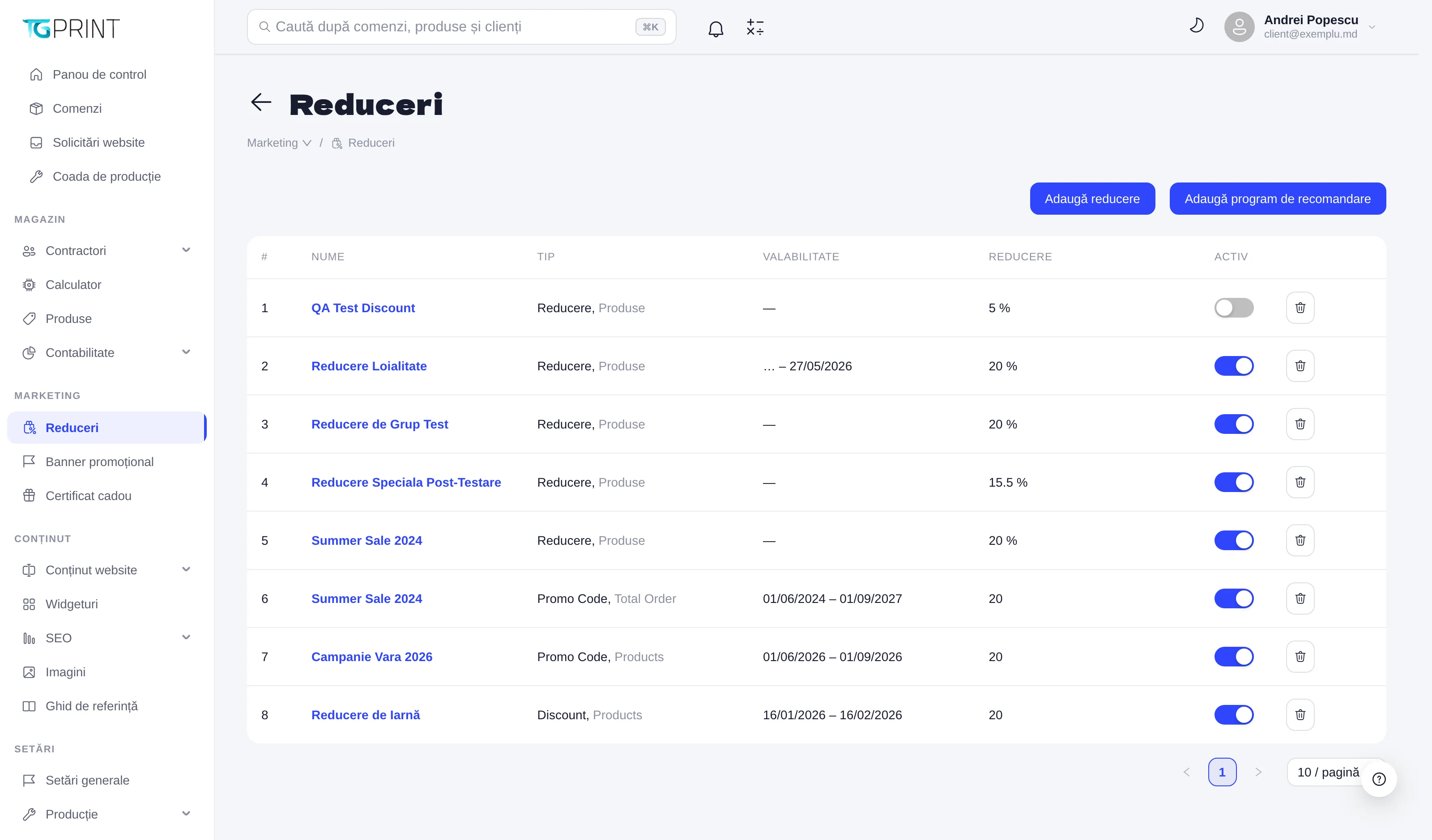
The discount list
The table has the columns Name, Type, Validity, Discount and Active. Type shows the kind of discount (Discount, Referral — a referral program, Promo Code) and, after the comma, what it applies to: Products, Delivery or Universal (the order total). Validity shows the Start – End period; — means no period at all. Discount shows the value, with % for percentage discounts.
- The Active toggle switches the discount on or off right there, without opening its sheet. A discount that is switched off no longer accepts any code at checkout.
- The bin button deletes the discount after confirmation, together with all of its promo codes.
- Click the name (or anywhere on the row) to open the discount sheet.
Add a discount
- Click Add Discount. The creation form opens, with the same fields as a referral program (see below), minus Affiliate Reward.
- Fill in Name, Type (Products, Delivery or Universal) and Discount — the value and, from the selector next to it, percentage or amount.
- Optionally: Minimum Order Amount and Maximum Order Amount, Validity (the start and end dates), Week Days (All by default), Groups, Products and Include shopping cart total.
- Click Save. The discount appears in the list, active.
The discount sheet
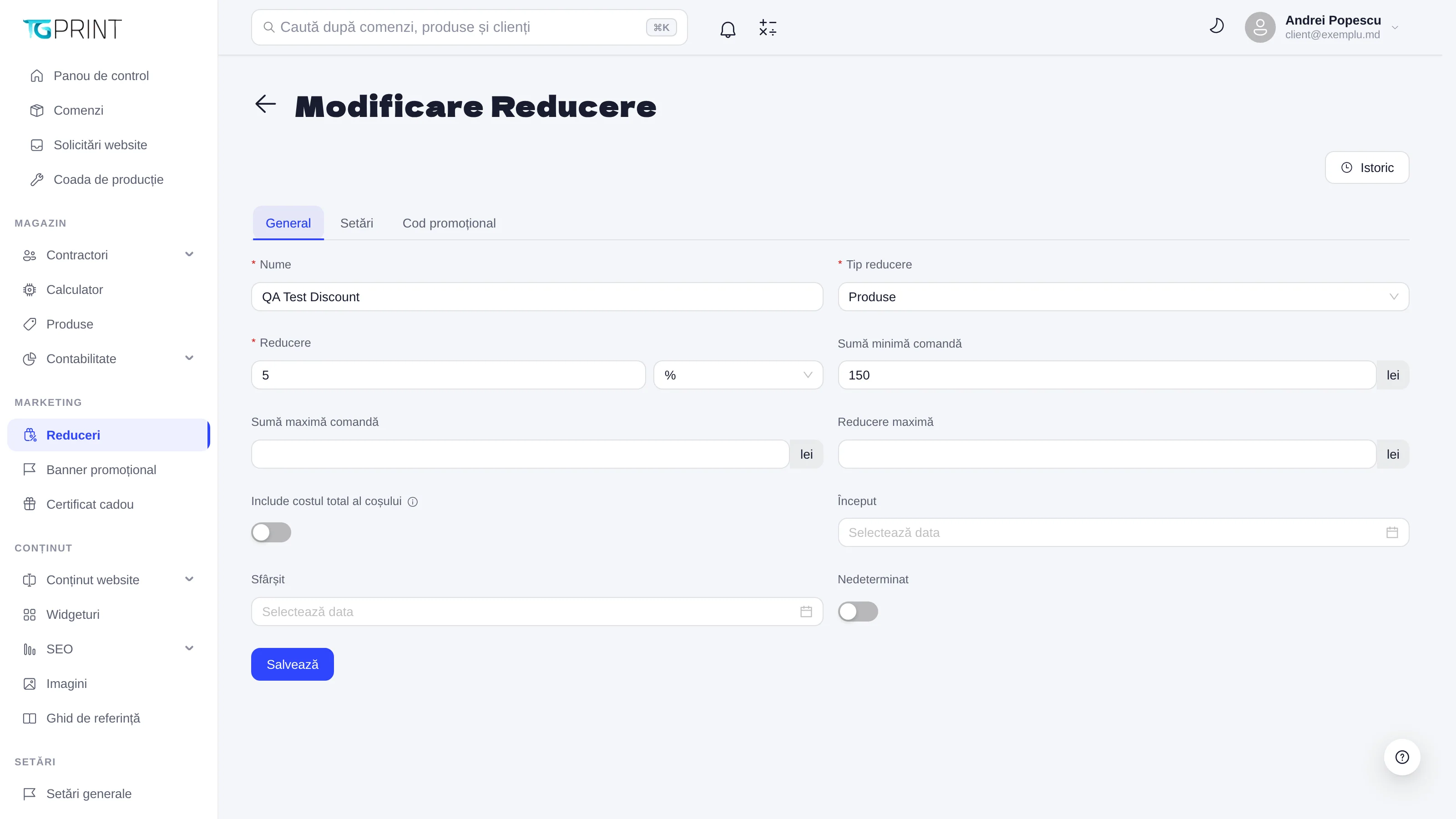
The Edit Discount sheet has three tabs — General, Settings, Promo Code — and the History button, which opens the change log: creation, updates, activation or deactivation, codes generated, imported or deleted, each with its date and user.
The General tab:
- Name and Discount type — Products, Delivery or Universal.
- Discount — the value and the unit: % or lei. A percentage cannot exceed 100.
- Minimum order amount and Maximum order amount — the code is accepted only if the order subtotal falls between these thresholds; leave them empty if they do not matter.
- Maximum Discount — the ceiling of the discount in lei: however large the cart is, no more than this is taken off.
- Include overall cart cost — "Recalculate the cart with the selected discounts (percentage discounts only)".
- Start and End — the period in which the codes work. Indefinite clears and locks those two dates: the discount never expires.
- Click Save.
The Settings tab has four lists: Week Days — the code is accepted only on the ticked days (none ticked means All); Clients, Groups (the customer groups from Customers, organizations and groups) and Products — the customers, groups and products the discount is meant for. Each list has an Edit link that opens the selection window; click Save at the end.
Promo codes
The Promo Code tab lists the codes of the discount, with Code, Code type, Date and Usage Count.
- Click Add. In the Add promo code window, type the code into Code or click Generate random code (8 characters). For several codes at once, switch on Mass generation and fill in Quantity (1–1000); Exclude similar characters (0, O, o, I, l, 1) avoids misreadings.
- Choose the Code type: One-time (entire site) — the code is blocked after the first order it was used in; One-time (per customer); Unlimited.
- Click Save. Codes are stored in upper case; the customer can type them any way.
- Download exports the list to Excel; Upload imports a .csv or .txt file with one code per line (optionally the type as well, separated by a comma or a space).
The customer enters the code in the Promo code field at checkout and clicks Apply. The store checks, in order: the code exists and is active, the discount is active, the validity period (unless it is Indefinite), the day of the week, the minimum and maximum order amount; then it computes the discount, caps it at Maximum Discount and at the subtotal, and shows it on the Discount row. See also How a customer orders on the site.
Note. On the storefront, a discount reaches the customer through the promo code entered at checkout. Create at least one code for every discount you want the store to offer.
The referral program
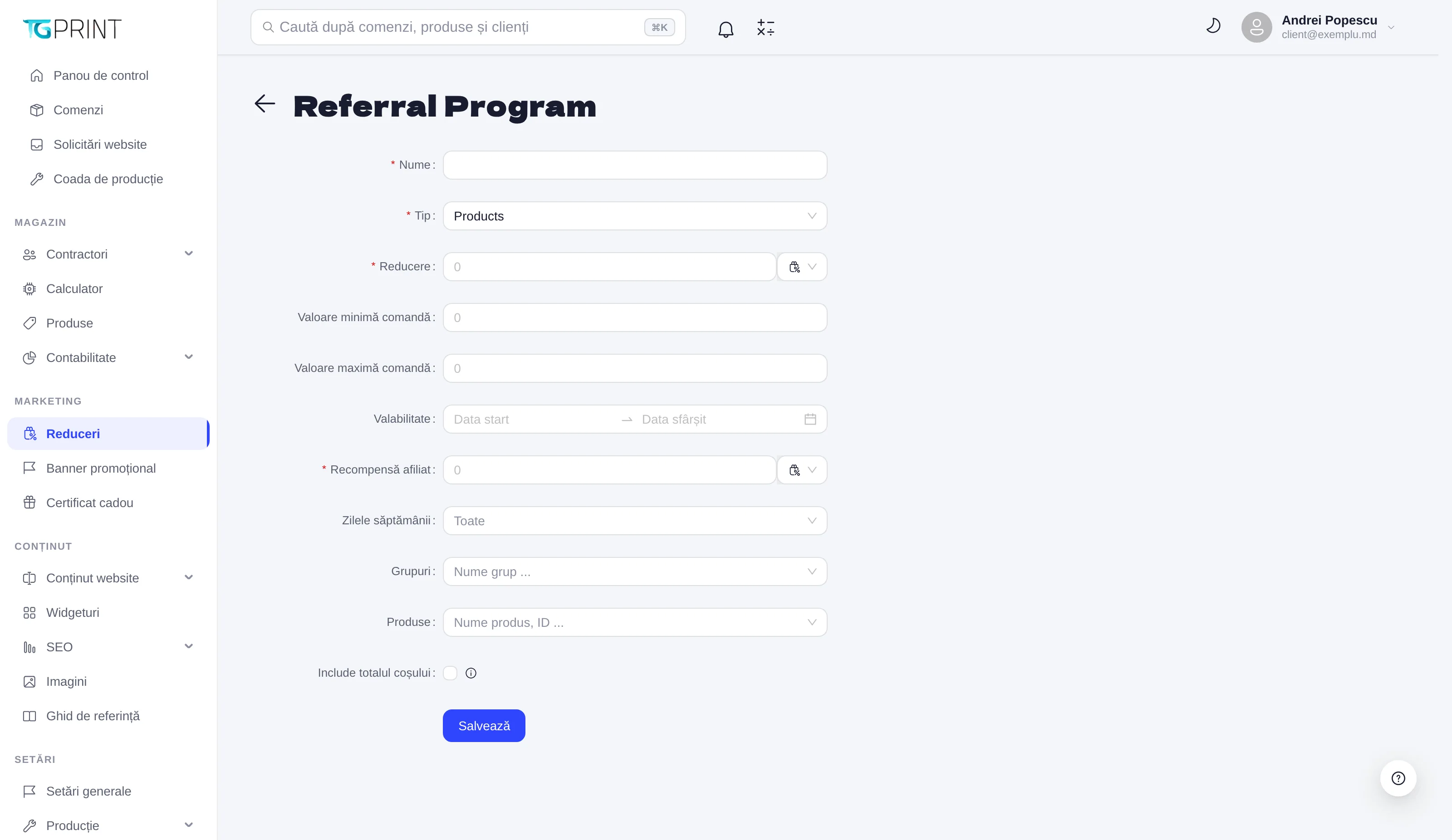
Add Referral Program opens the Referral Program form — a discount of type Referral, with one extra field:
- Name, Type (Products, Delivery, Universal) and Discount — what the referred customer gets.
- Affiliate Reward — the reward for the one who refers; on the discount sheet it appears as Affiliate commission.
- Minimum Order Amount, Maximum Order Amount, Validity, Week Days, Groups, Products and Include shopping cart total — the same as on an ordinary discount.
- Click Save.
Note. Referral programs have no Promo Code tab; their sheet has only General and Settings.
Banners on the site can point to a discount — see Promotional banners. For vouchers with a fixed face value, use Gift certificates.