Blog
Blog articles: creating them, the image, the slug, publishing.
Updated:
Content → Website Content → Blog holds the blog articles and the news of the store. On the site they appear in the News section, at /noutati — a grid of cards with an image, a title, a short description and the Read more button — and every article has its own page, /noutati/<slug>. The same articles can also be shown on other pages, through the news widget (see Widgets).
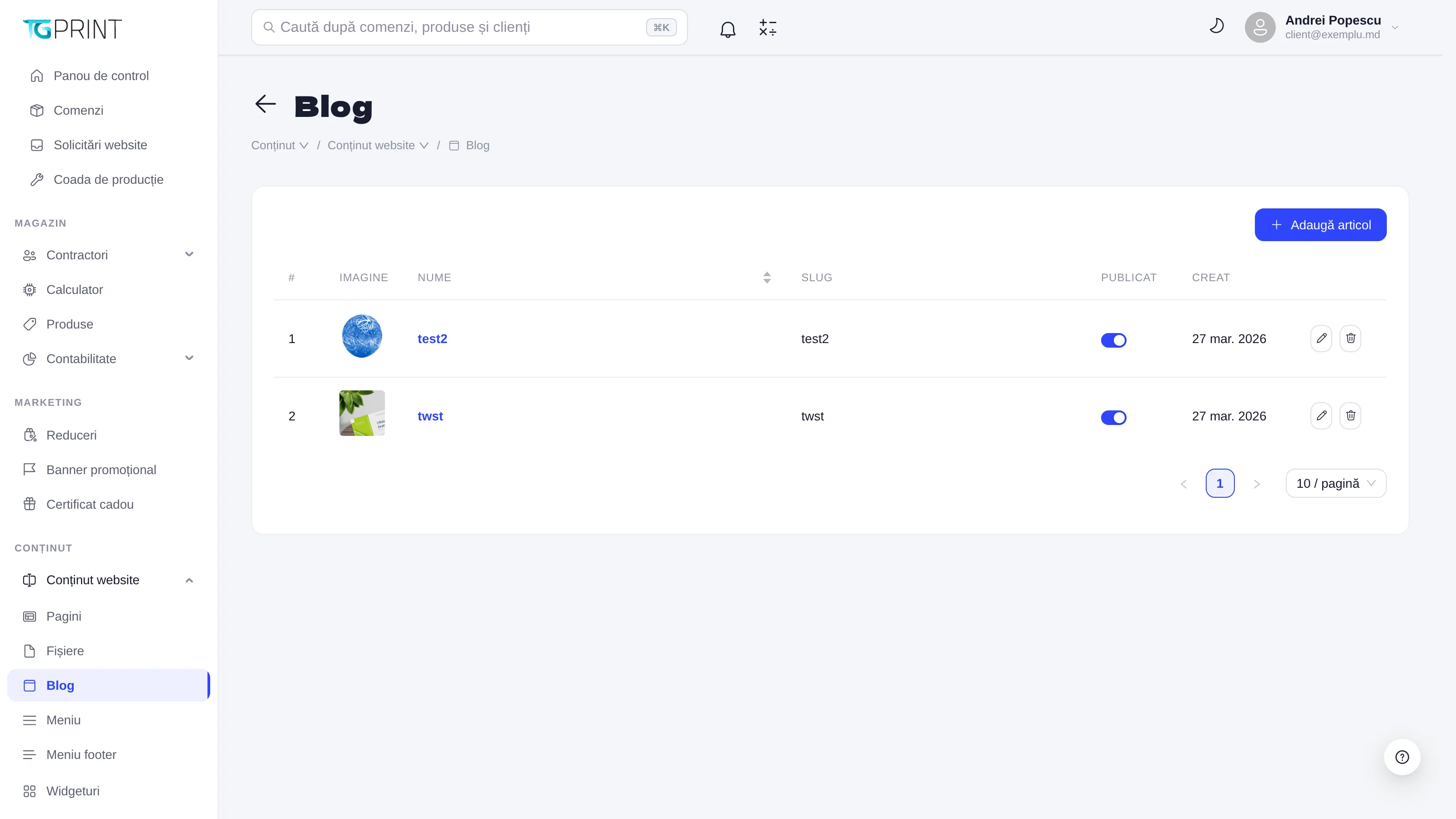
The list of articles
The table shows every article, including the unpublished ones, with the columns:
- # — the order number.
- Image — the thumbnail of the article, or a dash when it has no image.
- Name — the title; it is a link to the editor and can be sorted.
- Slug — the part of the address that identifies the article (
/noutati/<slug>). - Published — the publishing toggle. You can flip it straight from the list: switched off, the article stays in the panel as a draft and disappears from the site.
- Created — the creation date.
On the right of every row you have the pencil (opens the editor) and the bin (deletes the article, after the Are you sure you want to delete this article? → Yes, delete confirmation). Click anywhere on the row to open the article. The list is paginated (10 / page).
Adding and editing an article
- Click Add article — the New article form opens. For an existing article, click its name; the page title becomes Edit article: <name>.
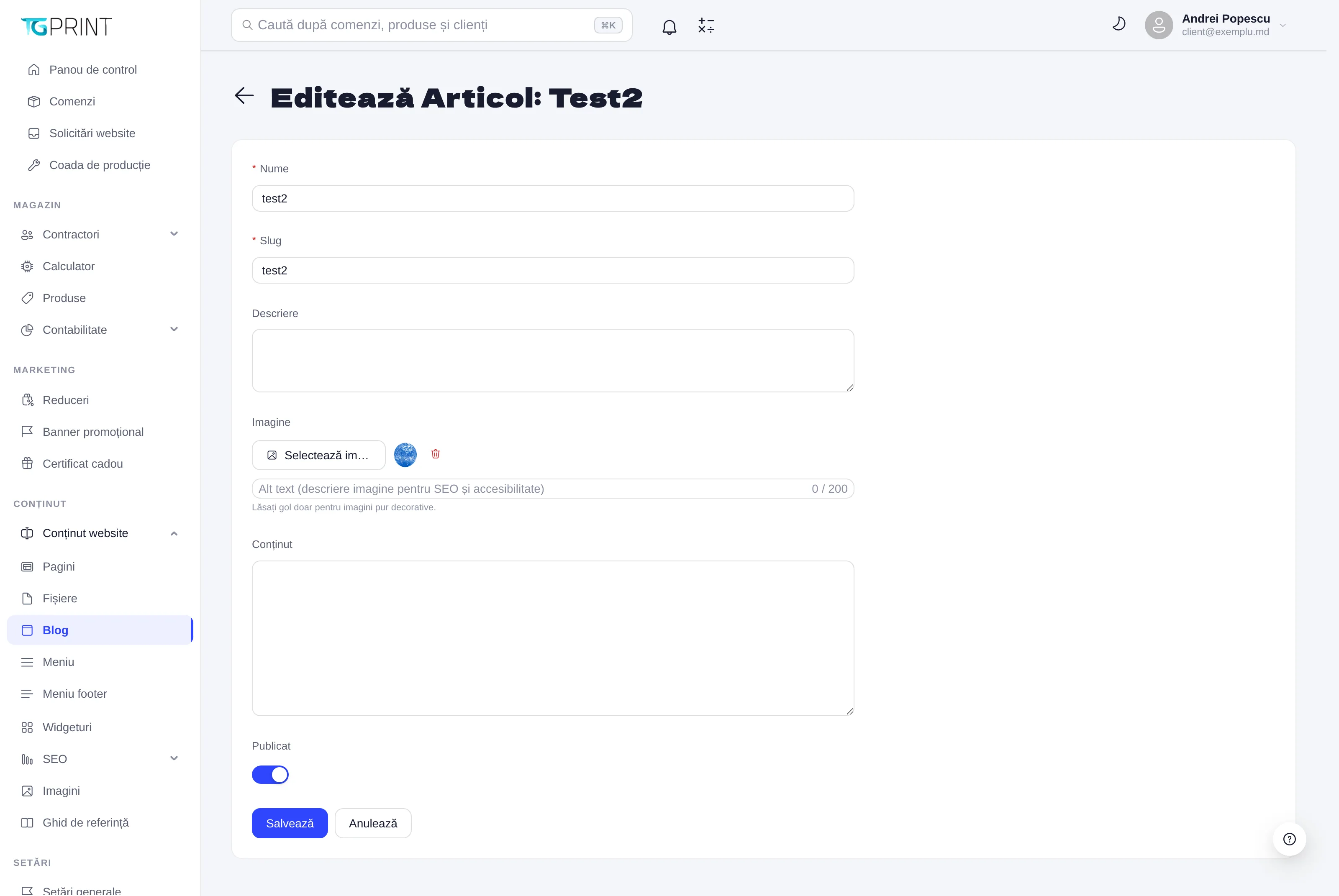
- Name (required) — the title of the article, as it appears on the card and on its page.
- Slug (required) — it fills itself in from the name as you type, with lowercase letters, digits and hyphens; if you edit it by hand, it is no longer rewritten. It must be unique: on save, a slug already used by another article is rejected.
- Description — the summary shown on the card in the news list; it is also the description search engines see.
- Image — Select Image opens the image library (see Images and files): you pick an image that is already uploaded or upload a new one. Once chosen, the thumbnail appears, along with the bin that removes it and the Alt text (image description for SEO and accessibility) field, at most 200 characters, with the hint Leave empty only for purely decorative images. The image is the cover of the card in the news list.
- Content — the text of the article. You can write plain text or HTML; the article page displays it as it is.
- Published — on by default for a new article. Switch it off to keep the article as a draft, visible only in the panel.
- Click Save; Cancel takes you back to the list with no changes.
Note. Changing the slug after publishing changes the address of the article; the old links to it stop working unless you add a 301 redirect in SEO.
Note. The page of each article generates its own title and description for search engines from Name and Description (or, when there is no description, from the beginning of the content).