The calculator in the admin panel
How to create an order for a customer straight from the admin panel, with the same calculator as on the storefront.
Updated:
Not every order arrives through the storefront. A customer calls, writes on WhatsApp or walks up to the counter — and you have to place the order for them. That is what Shop → Calculator is for: the same price calculator the customer uses on the storefront, but inside the admin panel, with a customer picker instead of the checkout form. The resulting price is identical to the one on the storefront, because it comes from the same calculation rules of the product.
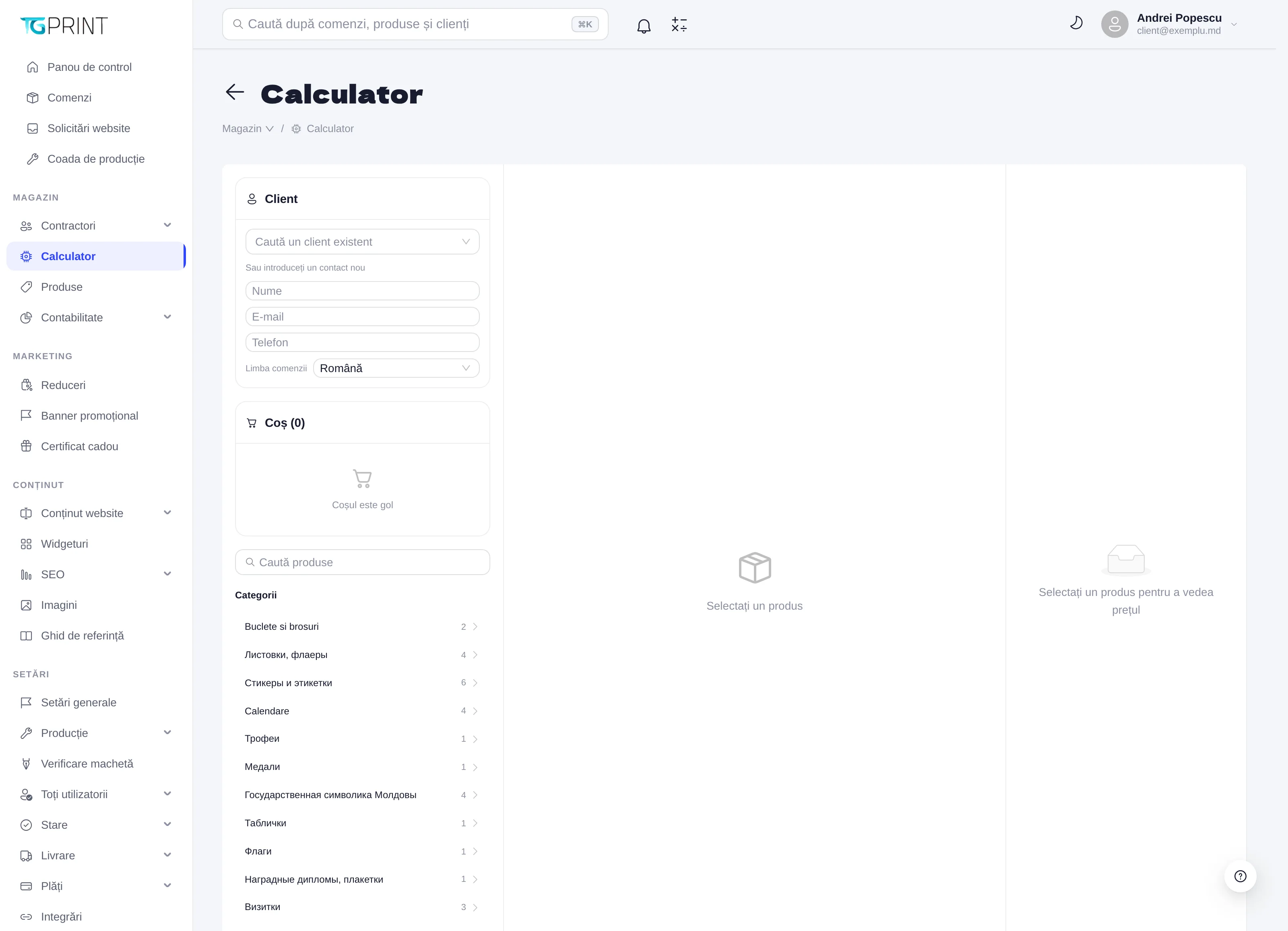
Step 1: the customer
In the Client block you have two options:
- Search an existing client — type the name, the e-mail or the phone; you pick the customer from the list and the order is linked to their record (history, discount group, personal manager).
- Or enter a new contact — name, e-mail and phone for a customer who does not exist yet. Their record is created together with the order, with Email confirmed: No; you will find them under Contractors → Clients.
Then choose the Order language (Romanian, Russian or English): the customer receives the order e-mails in that language and sees the order in that language in their account.
Step 2: the product and its configuration
On the right are the Categories, with the number of products in each. Click a category to see its products, or search directly with Search products.
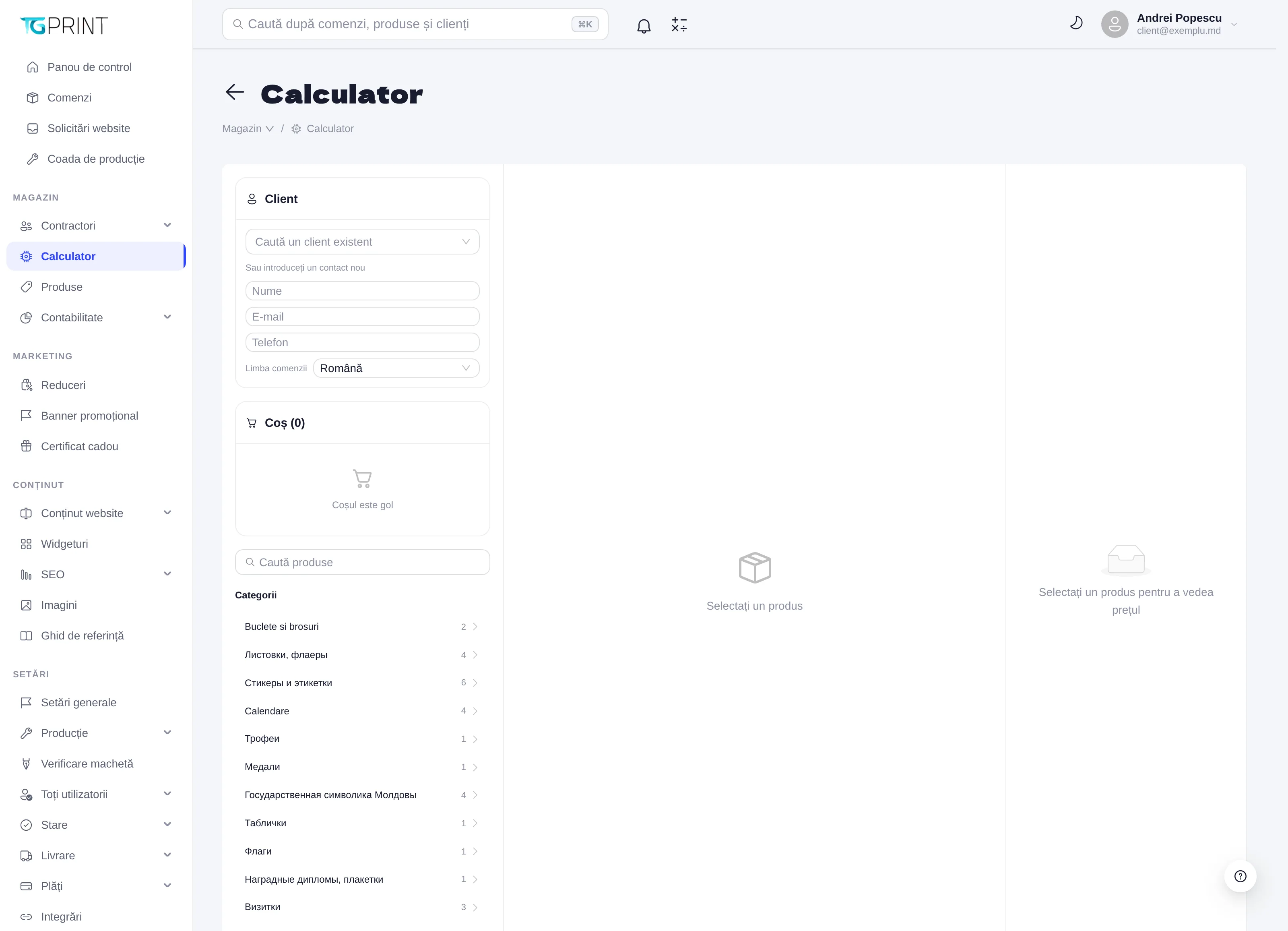
- Choose the product. Its calculator loads: Format, Quantity (from the list of print runs or Custom quantity, if the product allows it), Print Type, Material, Lamination and the other options configured for the product, plus the Production Timeframe.
- Watch the Pricing block: the Total price, the price / pc, the VAT and Ready by (the estimated date) are recalculated on every change. Show breakdown opens up the composition of the price. If the requested quantity is below the minimum or is not a multiple of the configured step, the calculator rounds it and tells you so (Minimum quantity is, multiples of).
- Click Add to cart. You can add several products to the same order; Back to categories takes you back to the list.
A product with no calculator configured shows Calculator not configured for this product and cannot be added — configure it first in the product sheet, on the Calculation tab (Price calculation).
Step 3: the cart and the order
The Cart on the left lists the lines you added, with the parameters, the quantity and the price of each, and the Total. Click Create Order: the order appears immediately under Orders with the source Created by a manager, assigned to you, in the configured initial status, and the customer receives the confirmation e-mail in the chosen language. Open it afterwards to attach the artwork (if the product requires it), to record the payment or to choose the delivery — see The order page.
From a website request
The Create Order button on a request opens the calculator in Creating order from request mode: the customer is prefilled from the request, and if the request came from a product page, the product loads by itself (Product from the request is preloaded) with the configuration the customer chose on the storefront. You check it, correct whatever needs correcting and create the order; it stays linked to the request (Created from website request #…). If the product from the request has been deactivated or deleted in the meantime, the calculator tells you and you pick it manually.
Note. The calculator in the admin panel applies the customer's group discount and the personal discounts from their record, but not promo codes — those are entered only by the customer, on the storefront. For a specially negotiated price, create the order and then correct the payment from the order page.