Users, roles and managers
The team's accounts, the roles with their permissions and the automatic assignment of orders to managers.
Updated:
Who gets into the admin panel and what they are allowed to do is decided in Settings → All Users, with three screens: Users (the accounts), Roles And Accesses (what each role can do) and Managers (how orders and website requests are shared between managers).
Users
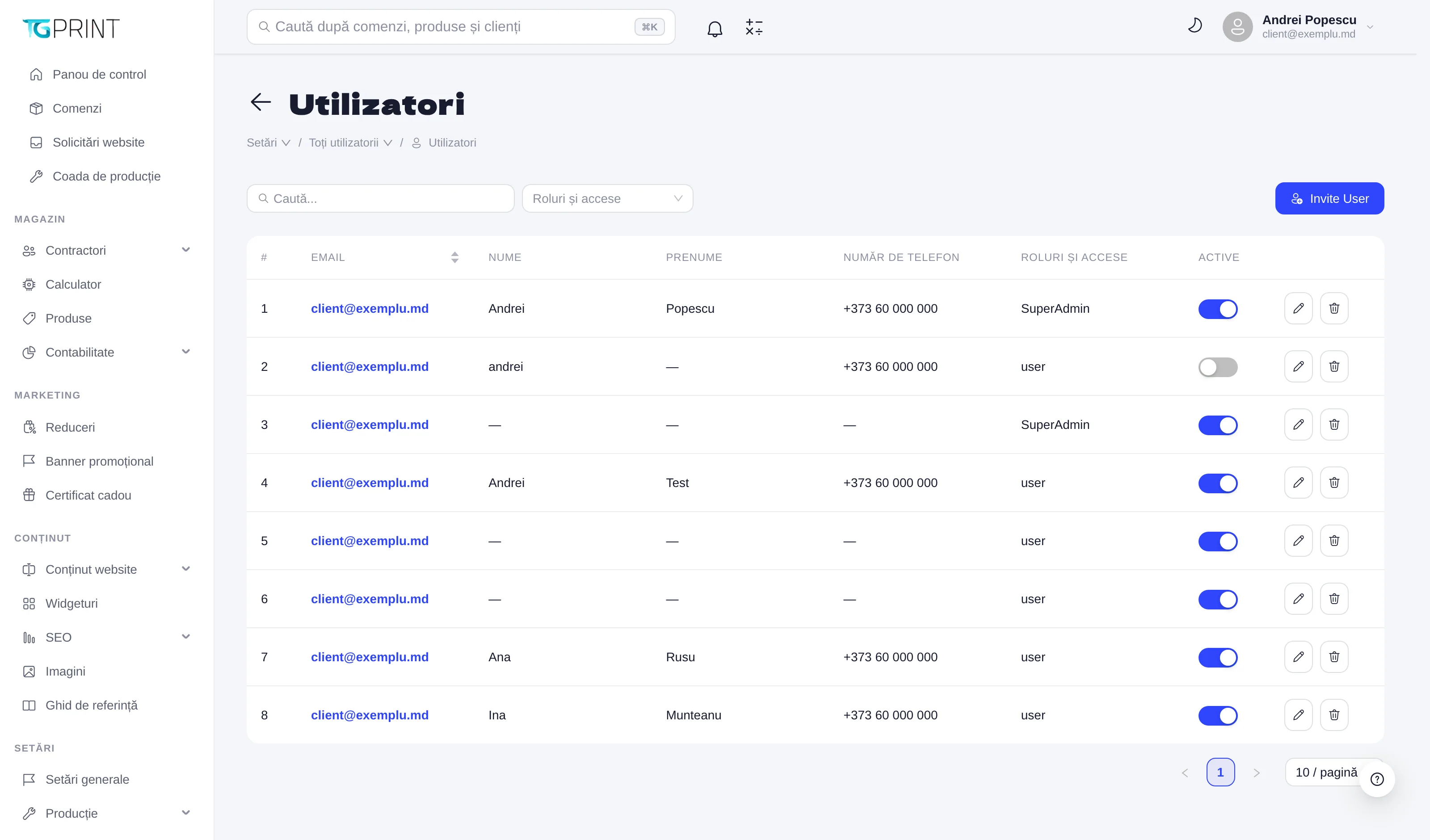
The list shows every account — the team and the customers who have an account on the site (the user role) — with Email, Name, Surname, Phone Number, Roles And Accesses and the Active toggle.
- Click Invite User to add a member of the team: you enter the email and pick the role; the person receives an invitation by email from which they set their own password. There is no free sign-up for the team — only customers can register on the site.
- Change an account's role from the Roles And Accesses column (for example from user to Manager for a customer who becomes an employee).
- Turn the Active toggle off to block an account's access immediately, without deleting it — its existing sessions stop working on the next request. See Signing in to the admin panel.
Note. You cannot deactivate the last active administrator and you cannot change your own role: the measure prevents locking yourself out of the admin panel by mistake.
Roles and accesses
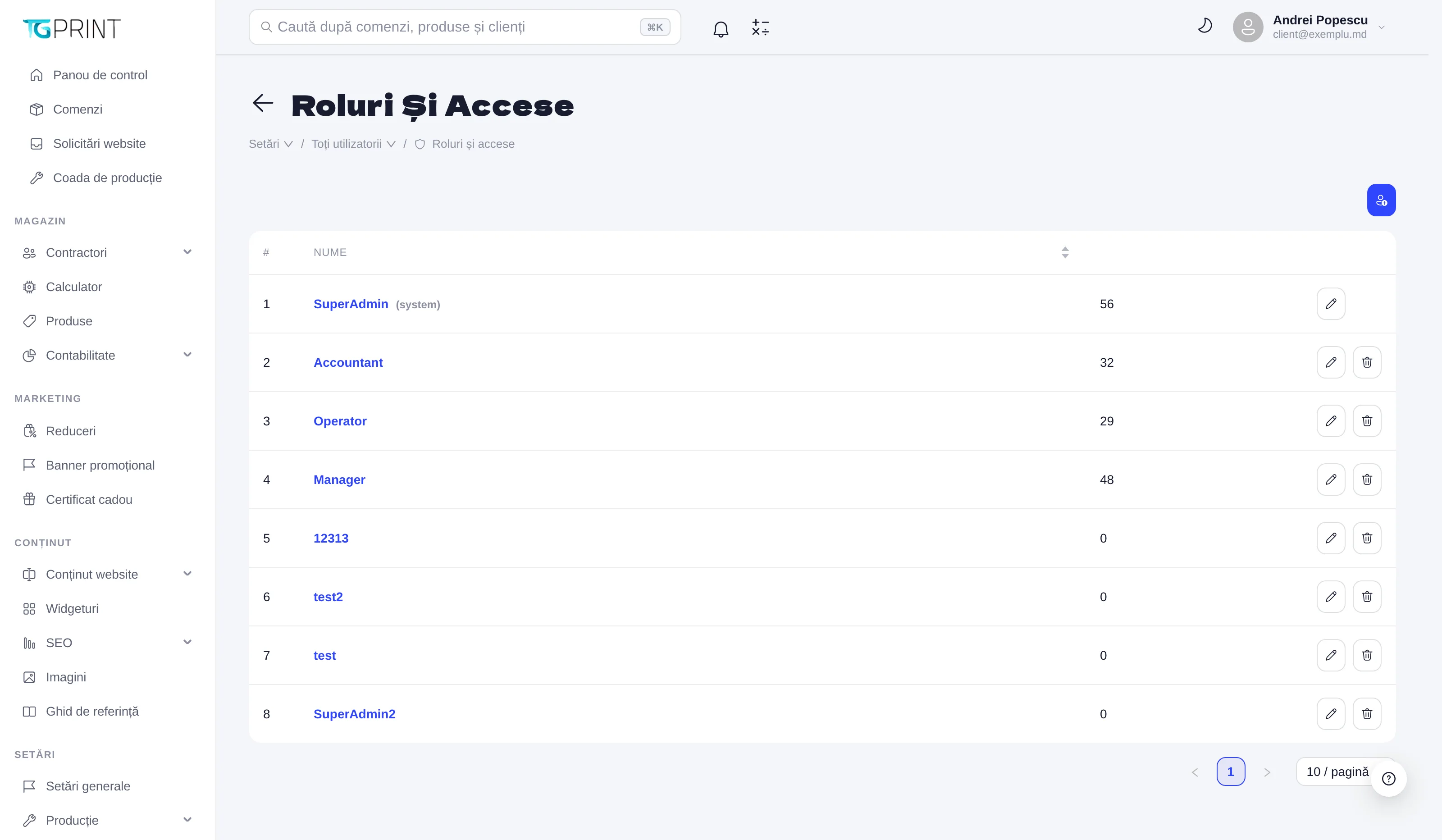
A role is a set of permissions. The platform ships with SuperAdmin(system) (all permissions, a system role that cannot be deleted), Manager, Operator and Accountant; the number next to each role is how many permissions it has. You can create new roles or modify the existing ones (except the system one).
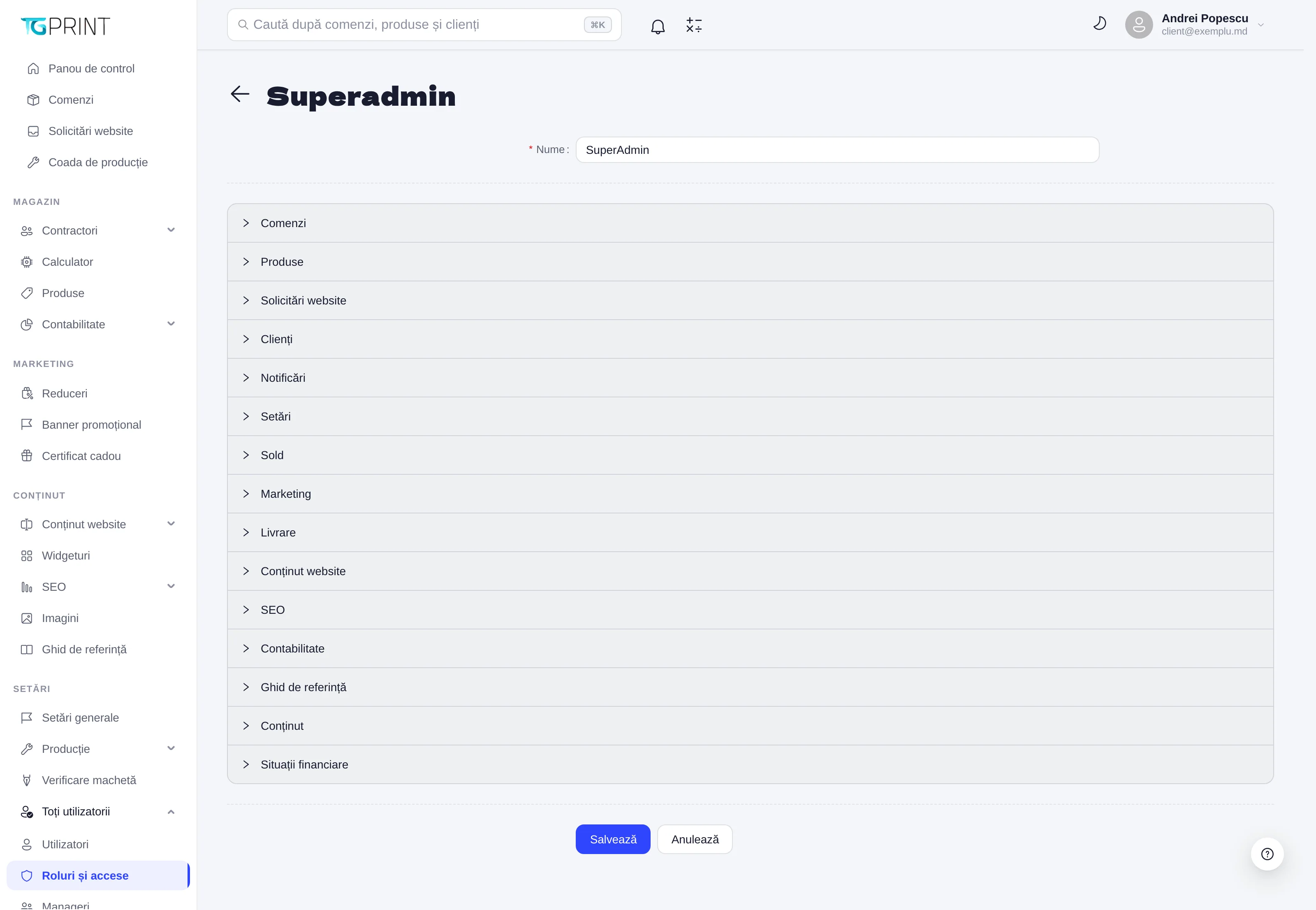
A role's page has the Name and the permissions grouped by area: Orders, Products, Website Requests, Clients, Notifications, Settings, Balance, Marketing, Delivery, Website Content, SEO, Accounting, Reference Book, Content, Financial Statements. In each area you tick the allowed actions (view, create, edit, delete, export, change the status…) and click Save. A screen for which the role has no permission at all disappears from that user's menu; a forbidden action is either hidden or refused by the server.
A few common-sense rules:
- Start from the predefined roles and adjust them, instead of building from scratch.
- Give permissions to the role, not to the person: when somebody leaves, you deactivate their account and nothing else changes.
- Production operators need Orders (view, change the status of operations) and the Production queue, not Clients or Settings.
Managers
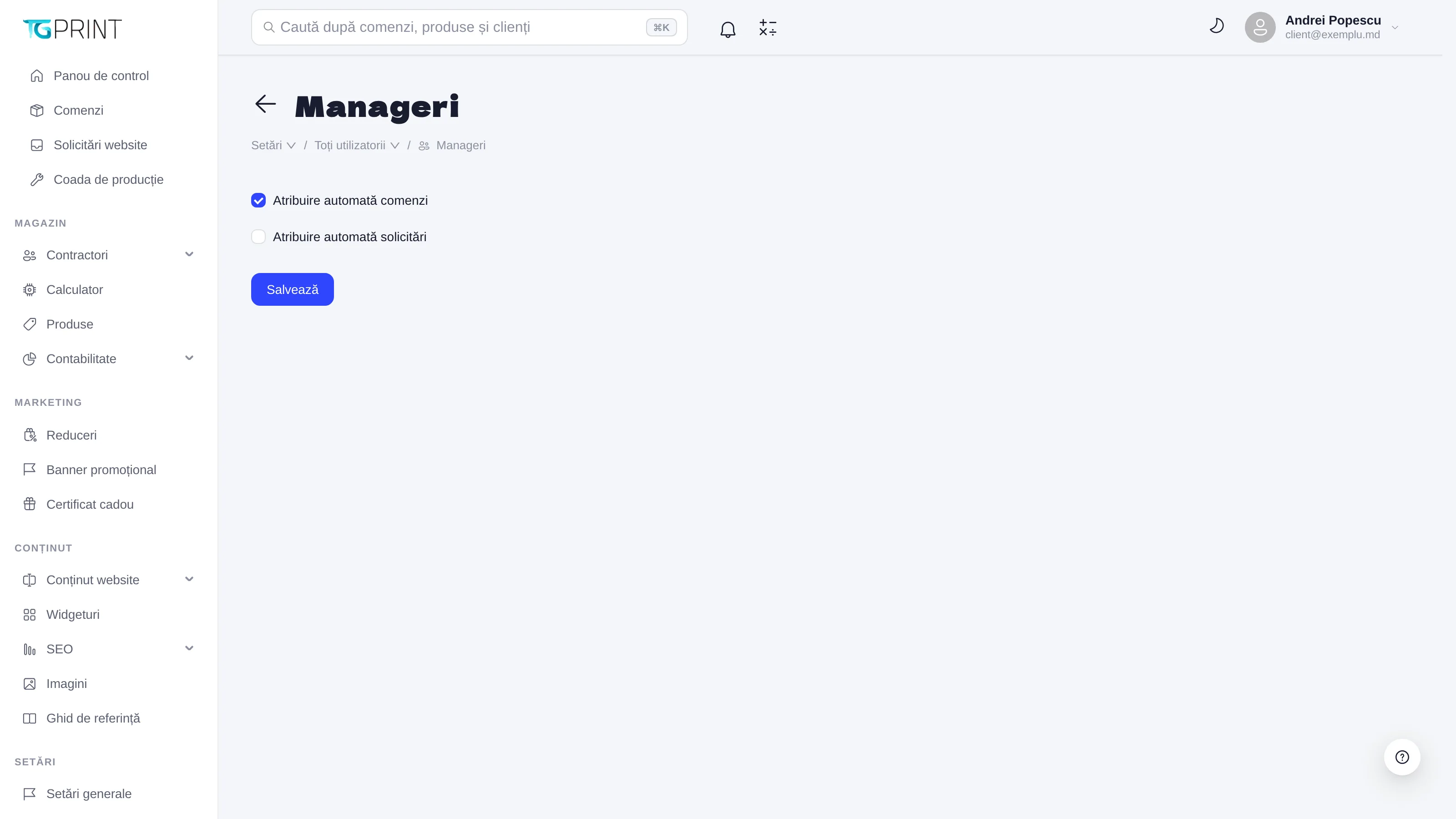
The Managers screen has two toggles: Auto-assign orders and Auto-assign website requests. When they are on, every new order, and respectively every new website request, automatically gets a responsible manager from among the users with a manager role, in turn — nobody has to "take" orders by hand any more, and the customer has someone to talk to from the start. A customer who has a personal manager in their card keeps that manager, regardless of the rotation. The manager can be changed at any time from the order page (Assign someone else). See The order page.