Dashboard
The key indicators, the sales chart, the top products and the latest orders, filtered by status.
Updated:
The Dashboard is the first page after you sign in and the first entry in the menu. There is nothing to configure and nothing it asks you to do: it is an up-to-date summary of the store, from which you jump straight to whatever needs attention. Every figure is computed from the store's real data each time the page is opened.
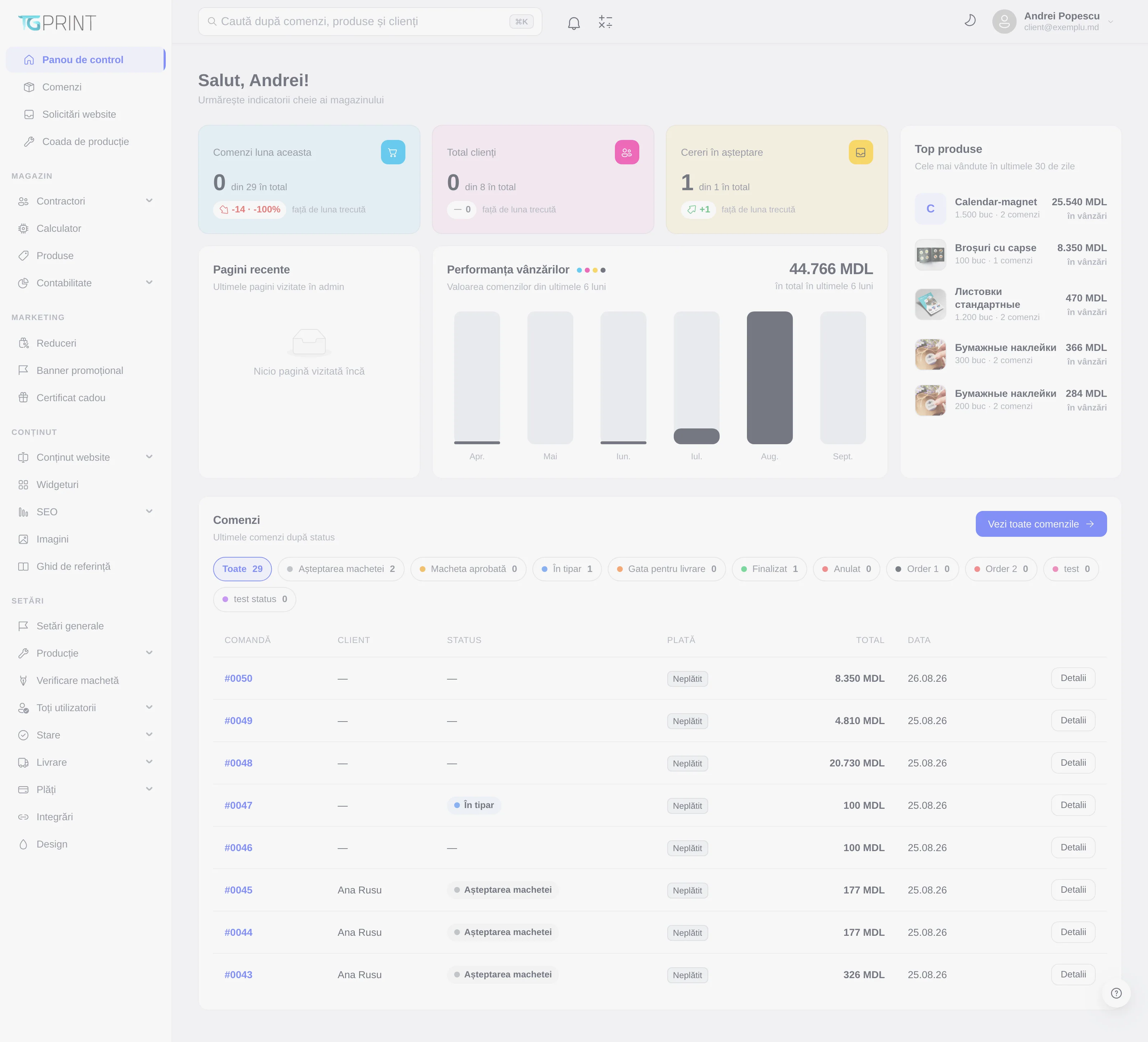
The three cards at the top
Each card shows the value for the current month, the total since the store started and the difference against last month, both as a number and as a percentage:
- Orders this month — how many orders were placed in the current month, out of the total. The difference is against the previous calendar month, not against "the last 30 days".
- Total clients — the new customers of the current month and the total number of customer accounts.
- Pending requests — the website requests nobody has picked up yet (the New and Unsorted statuses). When the number is greater than zero, someone is waiting for an answer: open Website Requests from the menu.
Note. A card may be missing if your role has no permission for that area — a production operator, for example, does not see Total clients. This is not an error; the dashboard only shows what you are allowed to see.
Recent pages
The Recent pages card keeps the last screens you opened in the panel, so you can return with one click to the order or the product you were working on. The list belongs to your account and starts out empty on your first visit ("No pages visited yet").
Sales performance
The Sales performance chart shows the value of the orders over the last 6 calendar months, one bar per month, with the current month highlighted. The amount on the right is the total for those 6 months. Hover over a bar to see the exact value and the number of orders for that month.
A month's value is the sum of the totals of the orders placed in that month, whether they were paid or not and whatever their status; a cancelled order stays in the figure. For the revenue actually collected, use Accounting.
Top products
Top products lists the five best-selling products of the last 30 days: pieces sold, number of orders and total value. A product deleted from the catalogue stays in the list under the name it had at the time of the order.
Orders
The Orders card at the bottom is a short version of the order list. The round buttons above the table are the order statuses, each with the number of orders currently in it; All is selected by default.
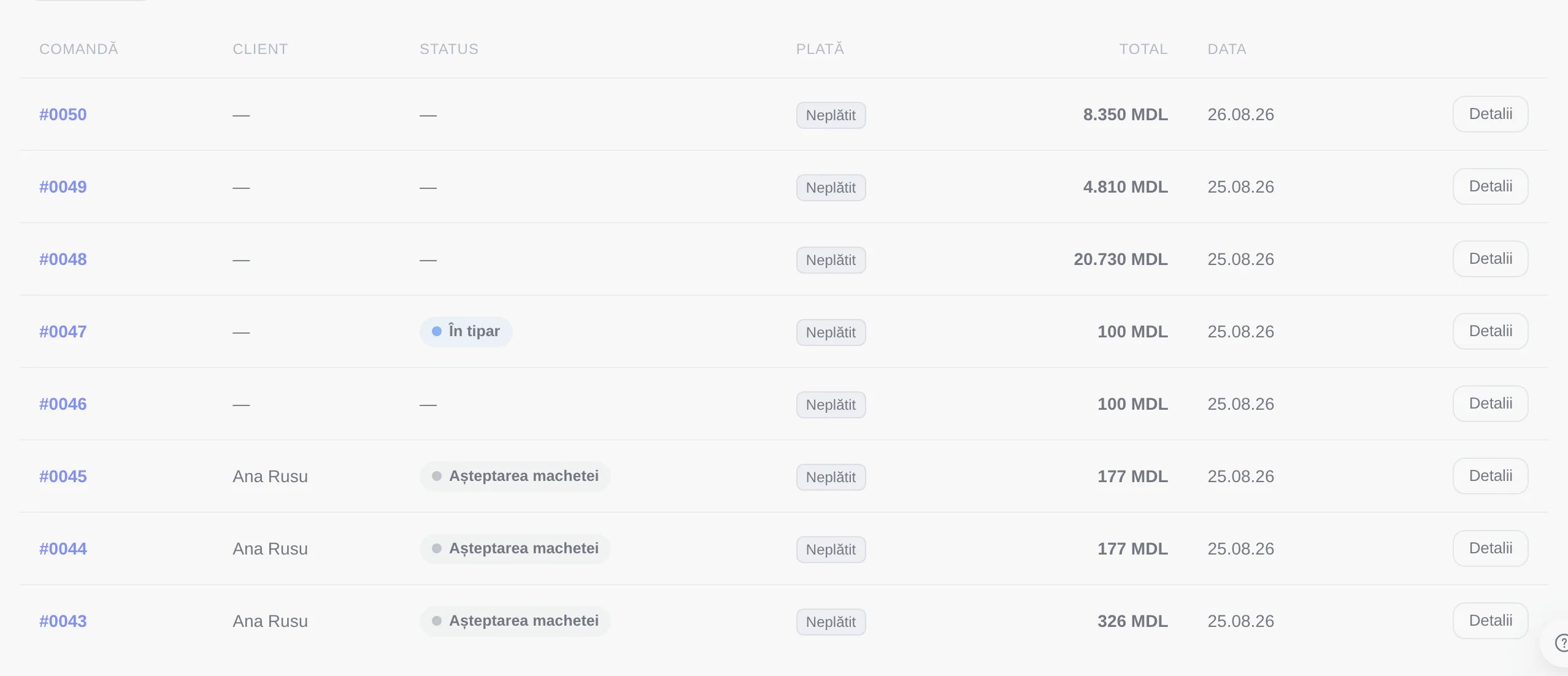
- Click a status — Awaiting artwork, for example — and the table shows only the orders in it. Click All again to go back.
- The table displays the order number, the customer, the status, the payment status (Paid / Unpaid / Partial), the total and the date. The order number and the Details button open the order page.
- View all orders takes you to the full list, with filters and export.
The statuses in this row are the ones defined in Settings → Status → Orders; if you add or rename a status there, it changes here too. See Statuses and rules.