Integrations
Connecting the platform to online payments, couriers and other external services.
Updated:
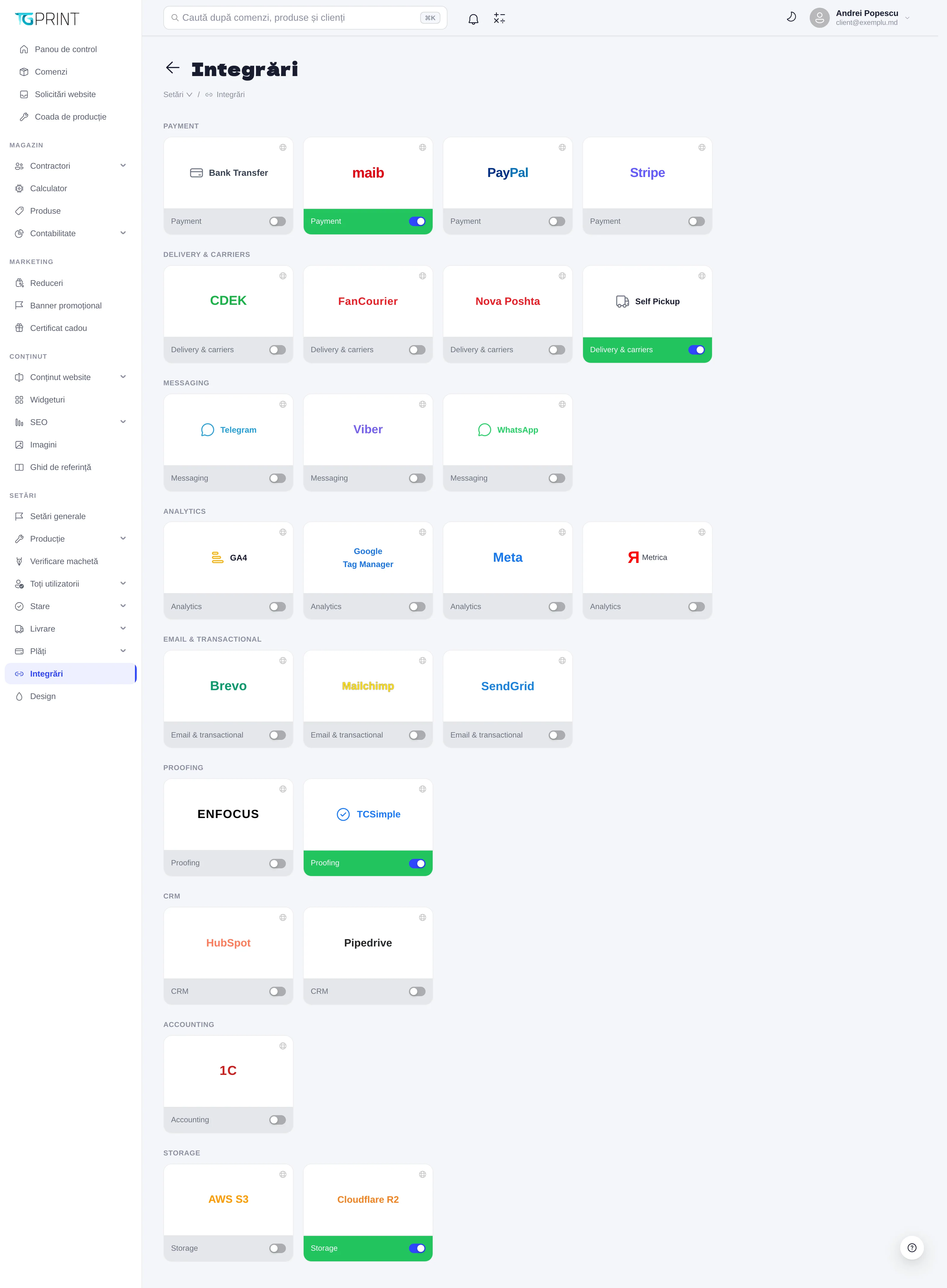
Settings → Integrations is where you connect the platform to services outside it: payment processors, couriers, messaging, analytics, email and artwork checking. Each integration is a card with an activation toggle; the card opens the configuration page with the credentials the provider requires. Inactive integrations do not appear anywhere on the storefront.
The groups
- Payment — Bank Transfer (payment by transfer, with the bank details from Payments → For Legal Entities), maib (card payment through maib, in MDL), PayPal (EUR/USD) and Stripe. An online payment method appears at checkout only if the integration is active and all the keys are filled in; an order paid online is automatically marked as paid.
- Delivery & carriers — CDEK, FanCourier, Nova Poshta (generating AWBs (waybills) and tracking them from the order page) and Self Pickup (the global toggle for self-pickup — when it is off, the pickup methods disappear from the storefront and from the admin panel). See Delivery.
- Messaging — Telegram (bot), Viber (bot), WhatsApp (business account): connecting the print shop's messaging channels; each page asks for the token of the bot or of the account, and the channel becomes available in the platform once activated.
- Analytics — GA4, Google Tag Manager, Meta (Pixel), Metrica: the tracking codes are inserted into the site automatically.
- Email & transactional — Brevo, Mailchimp, SendGrid: sending transactional emails (confirmations, status changes) and the newsletter.
- Proofing — ENFOCUS: advanced automatic checking of artwork (preflight) on upload.
Configuring an integration
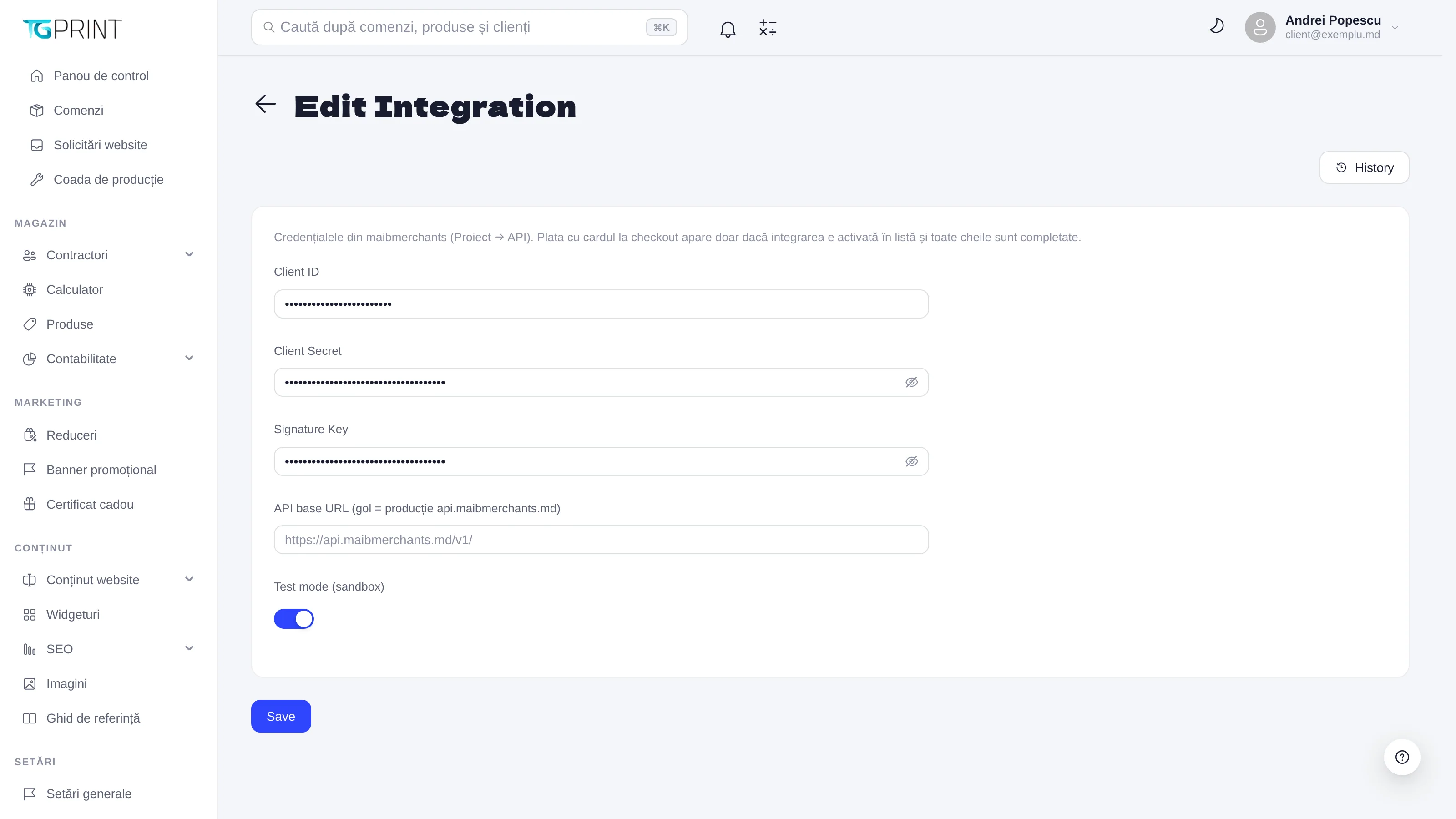
Clicking a card opens Edit Integration. The maib example:
- Enter Client ID, Client Secret and Signature Key — the credentials from your maibmerchants account (Project → API). The secrets are displayed masked.
- API base URL — leave it empty for production (
api.maibmerchants.md); fill it in only if the provider gives you a different endpoint. - Test mode (sandbox) — on while you are testing with test cards; turn it off when you switch to the real credentials.
- Save, then turn on the toggle on the card. History shows who modified the integration and when.
The couriers similarly ask for the API key and the sender's details; the messaging channels for the token of the bot or of the business account; analytics for the identifier of the property or of the container. You can see the exact fields on each integration's own page.
Note. The steps inside the providers' accounts (creating the project at maib, enabling the API at the courier) are outside the scope of this guide — follow each provider's documentation. Always test a complete order in Test mode before you enable the integration for customers.