Promotional banners
The banners shown on the site: creating them, their content, their period and switching them on.
Updated:
A promotional banner is a short message shown to the visitors of the site — a bar at the top of the page, a bar pinned to the bottom or a pop-up window — tied to one of the store's discounts. Banners are managed from Marketing → Promotional Banner.
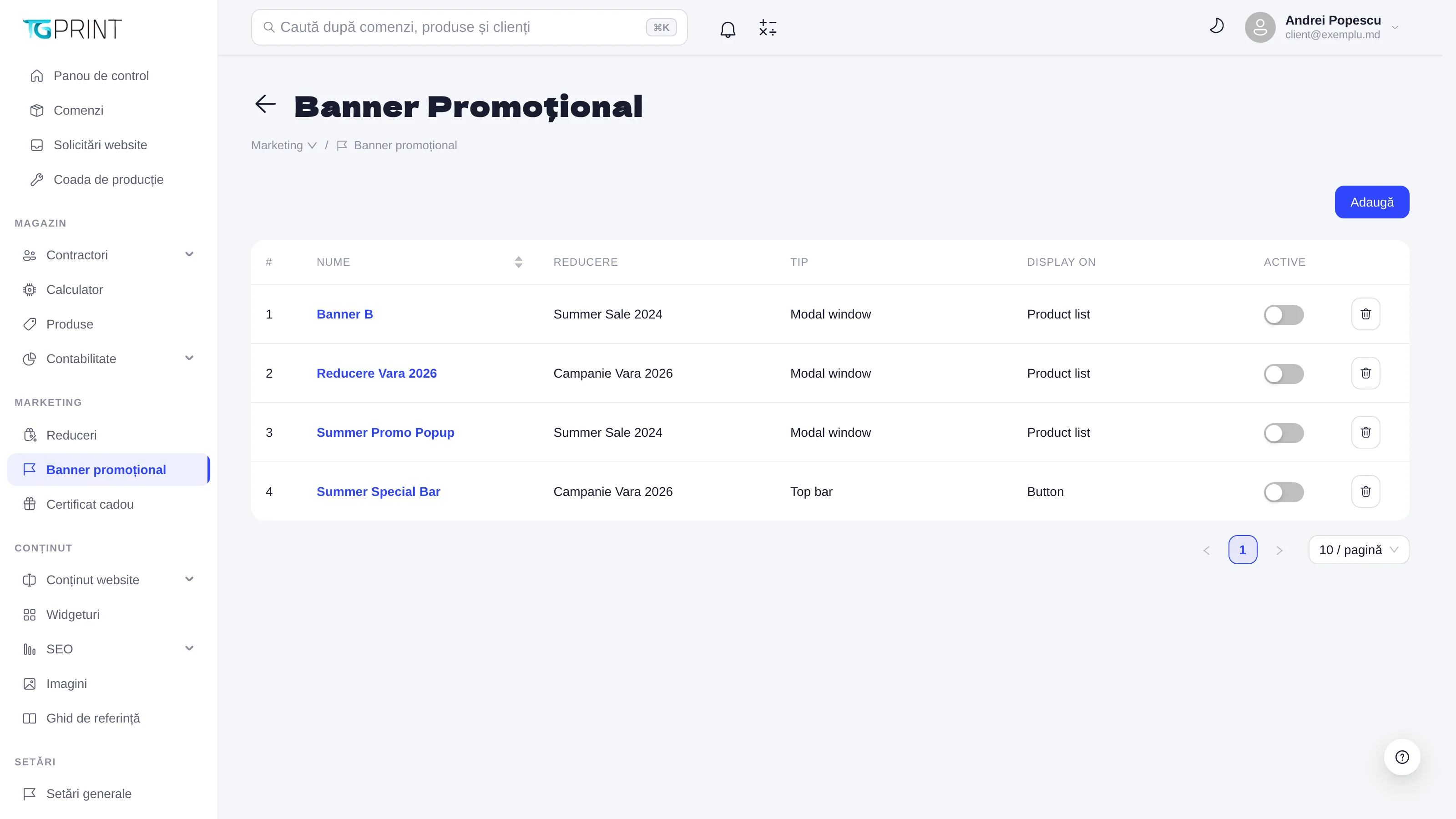
The banner list
The columns of the table: Name (the text shown on the site; click it to open the banner), Discount (the discount it is tied to), Type (Window (bottom-left), Modal window or Top bar), Display on (Product list or Button) and Active.
- The Active toggle publishes or withdraws the banner immediately; only active banners appear on the site.
- The bin button deletes the banner, after the "Delete this banner?" confirmation.
- Add opens the form of a new banner.
Add or edit a banner
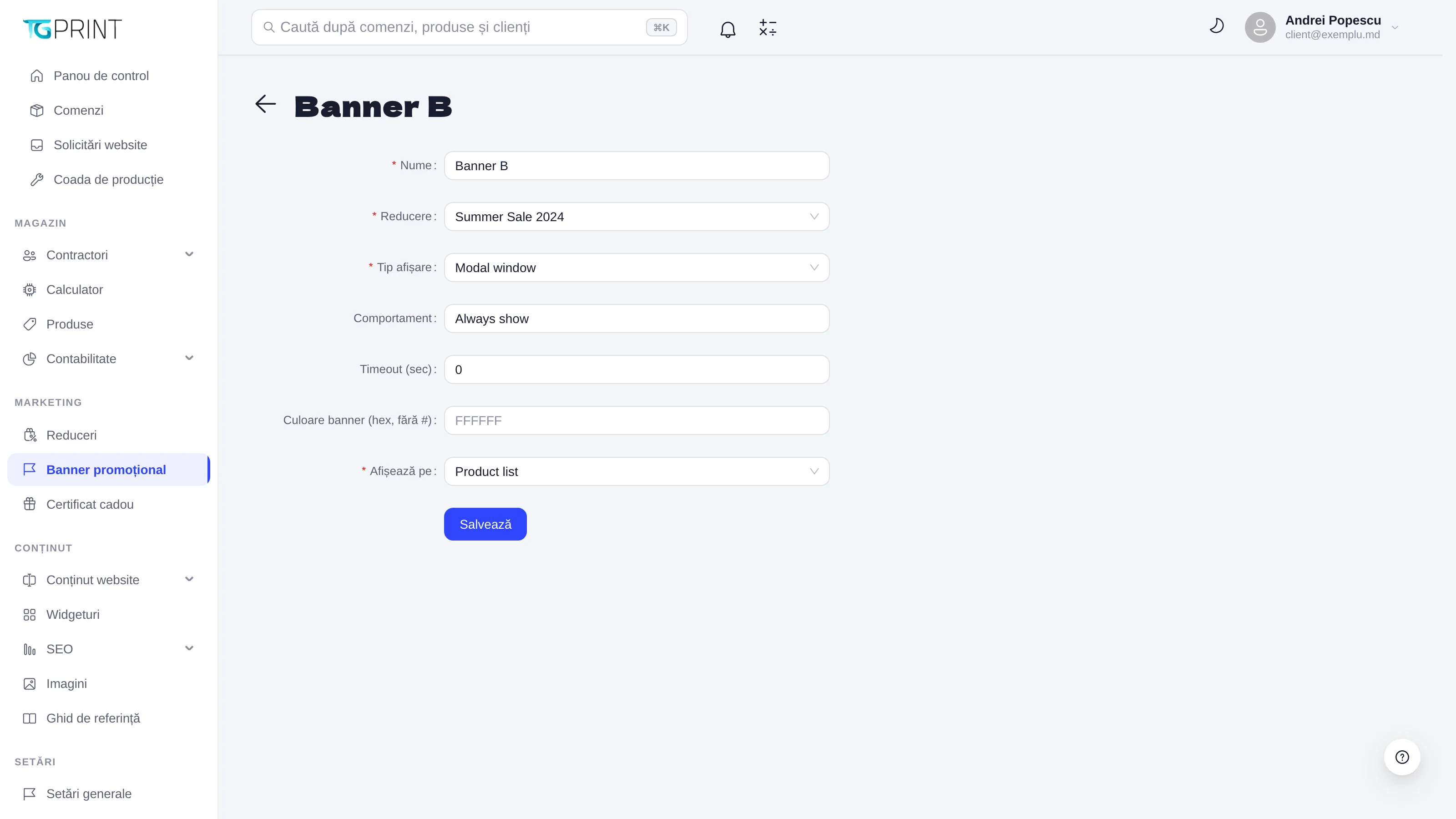
- Name — required; it is the text the visitor sees in the banner, so write the message of the offer here, not an internal name.
- Discount — pick from the list the discount the banner refers to (a required field; you can search by name).
- Display Type — how the banner appears: Top bar (a bar at the top of the page), Window (bottom-left) (a bar pinned to the bottom edge of the window) or Modal window (a window centred over the page, with a darkened background). On a new banner, Window (bottom-left) is preselected.
- Behavior — a text field; Always show by default.
- Timeout (sec) — for Modal window: how many seconds after the page loads the window appears. 0 means immediately.
- Banner color (hex, no #) — the background color, for example FFFFFF; the text automatically turns black or white, depending on contrast.
- Display on — Product list or Button. When you choose Button, Button label and Button link appear (the address it points to, for example
https://…): the banner gets a button next to its text. - Click Save; you return to the list.
How banners look on the site
Active banners load on every public page of the site — but not in the admin panel, on the sign-in screen or in the page preview. Each one shows its Name and, if you filled them in, the button with Button label → Button link. Top bars stack one below the other, and so do the bottom bars. Of the Modal window banners, only one is shown at a time — the first one whose Timeout has elapsed; once the visitor closes it, the next one follows.
The visitor can close any banner with ×. Closing it lasts only while the page stays open: on the next full load the banner comes back.
Note. A banner does not check the validity of the discount it is tied to on its own. When a campaign ends, switch off or delete the banner as well; otherwise visitors keep seeing a message for an offer that no longer works.