Customers, organizations and groups
The customer record, organizations (legal entities) and discount groups.
Updated:
Shop → Contractors gathers everything you know about the people you sell to: Clients (individuals, with or without an account on the storefront), Organizations (legal entities, with their invoicing details) and Groups (categories of customers sharing one discount). Every new customer from the storefront appears here automatically; you can also add customers by hand, for orders taken over the phone.
Clients
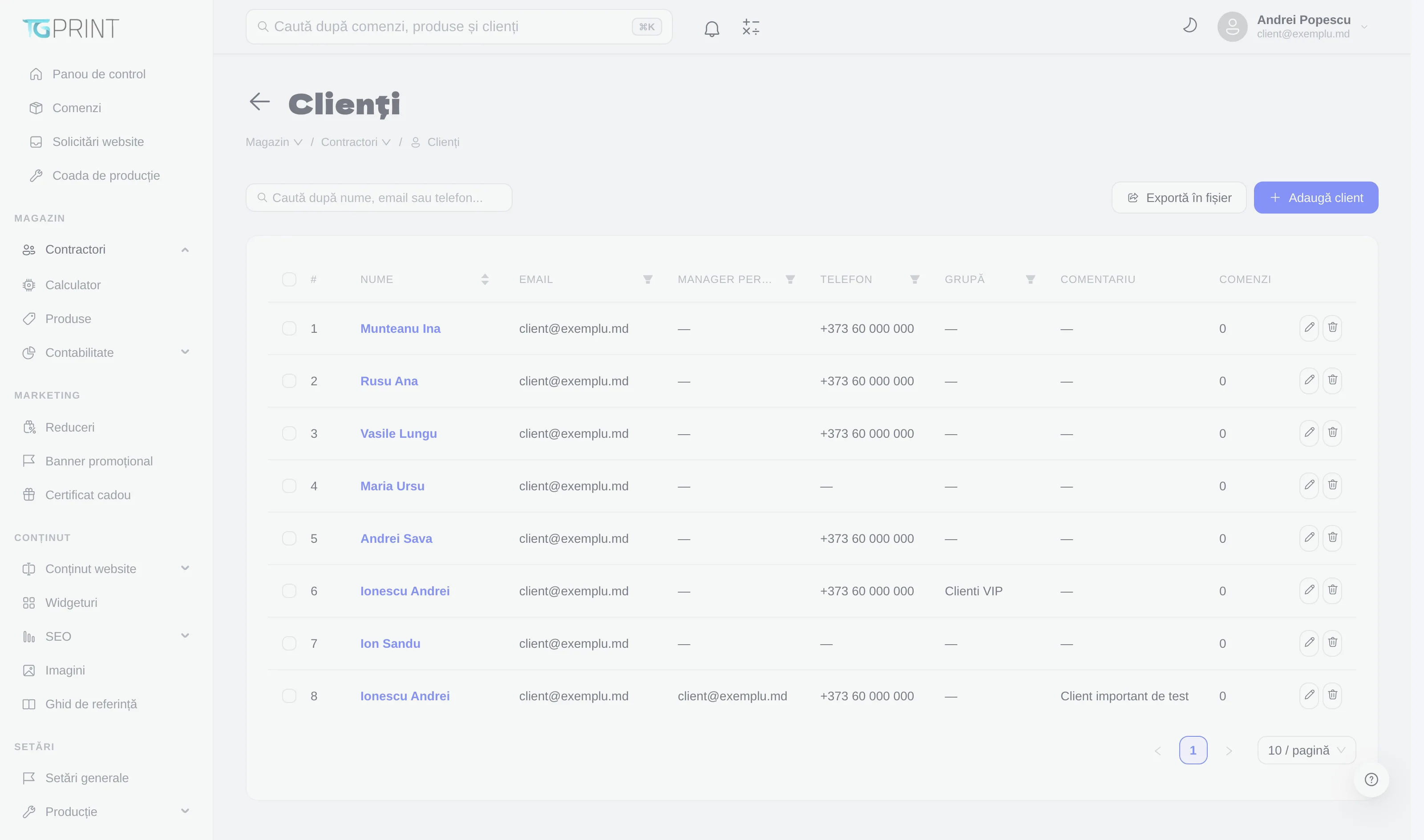
The Clients list has a search by name, email or phone, column filters (Personal Manager, Phone, Group) and two actions: Export to file (the current list, as CSV) and Add Client. The columns are Name, Email, Personal Manager, Phone, Group, Comment, Orders; the icons on the right edit or delete the customer. Which columns are shown can be chosen in your account settings — the list remembers your preference.
The customer record
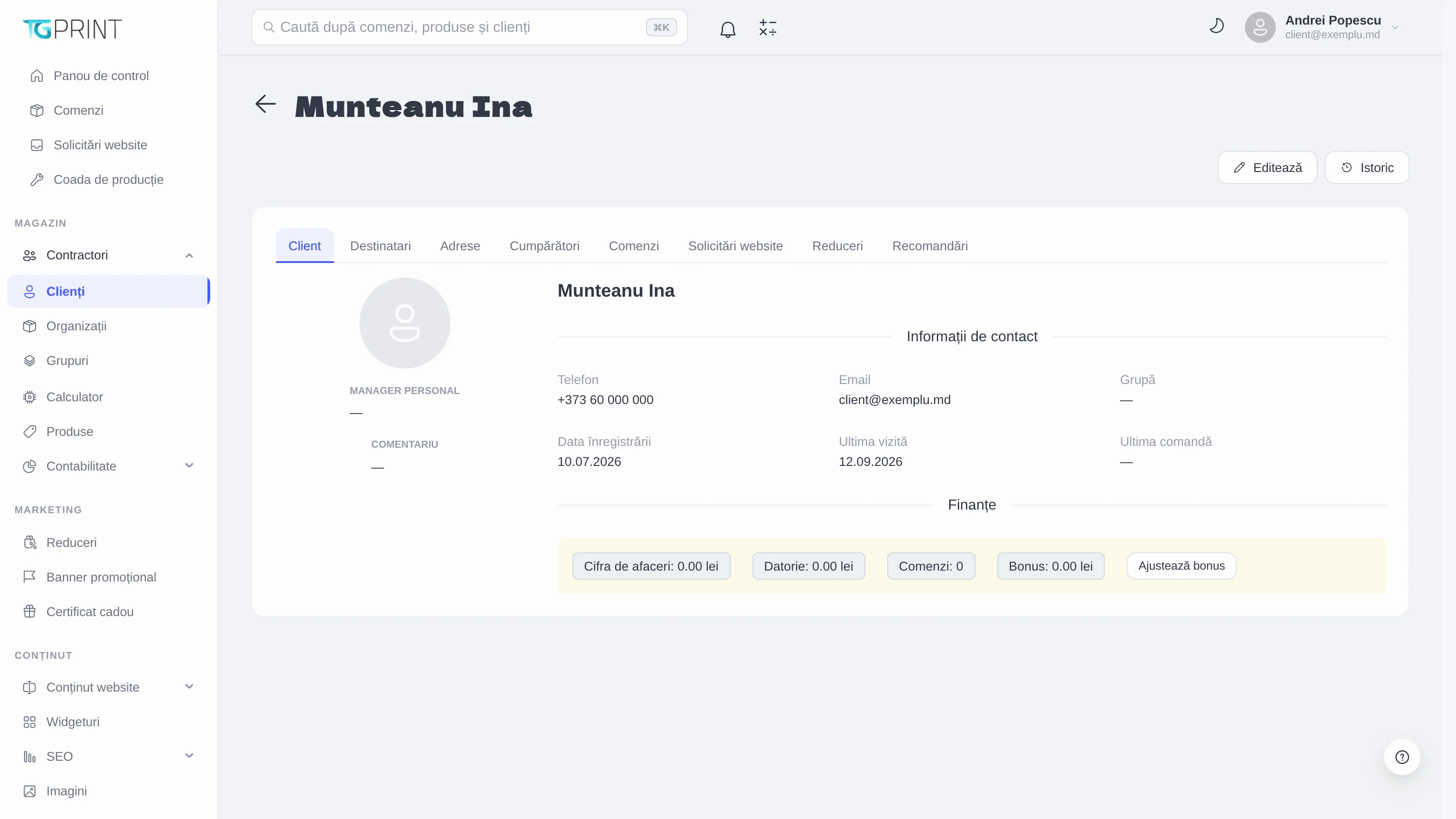
Clicking the name opens the record. At the top you have Edit and History (the change log). The tabs:
- Client — Contact Info (phone, e-mail, Group, Registration date, Last Visit, Last Order), the Personal Manager and the internal Comment, then Finances: Turnover, Debt, Orders and Bonus (the cashback balance). Adjust bonus adds or deducts bonus manually, with a reason that stays in the history.
- Recipients — the people the customer sends orders to (first name, surname, organization, phone, e-mail); they appear at checkout as ready-made recipients.
- Addresses — the saved delivery addresses.
- Buyers — the legal entities the customer buys on behalf of (an organization from Organizations); the invoice is issued to the buyer.
- Orders — all of the customer's orders, with number, date, status, payment, manager and total.
- Website Requests — the requests they sent from the storefront.
- Discounts — personal discounts: Add Discount with a name, type, percentage, period and what it applies to; they stack with the customer's group according to the rules in Discounts and promo codes.
- Referrals — the customers brought in through the referral program and the date of each referral.
Add a customer
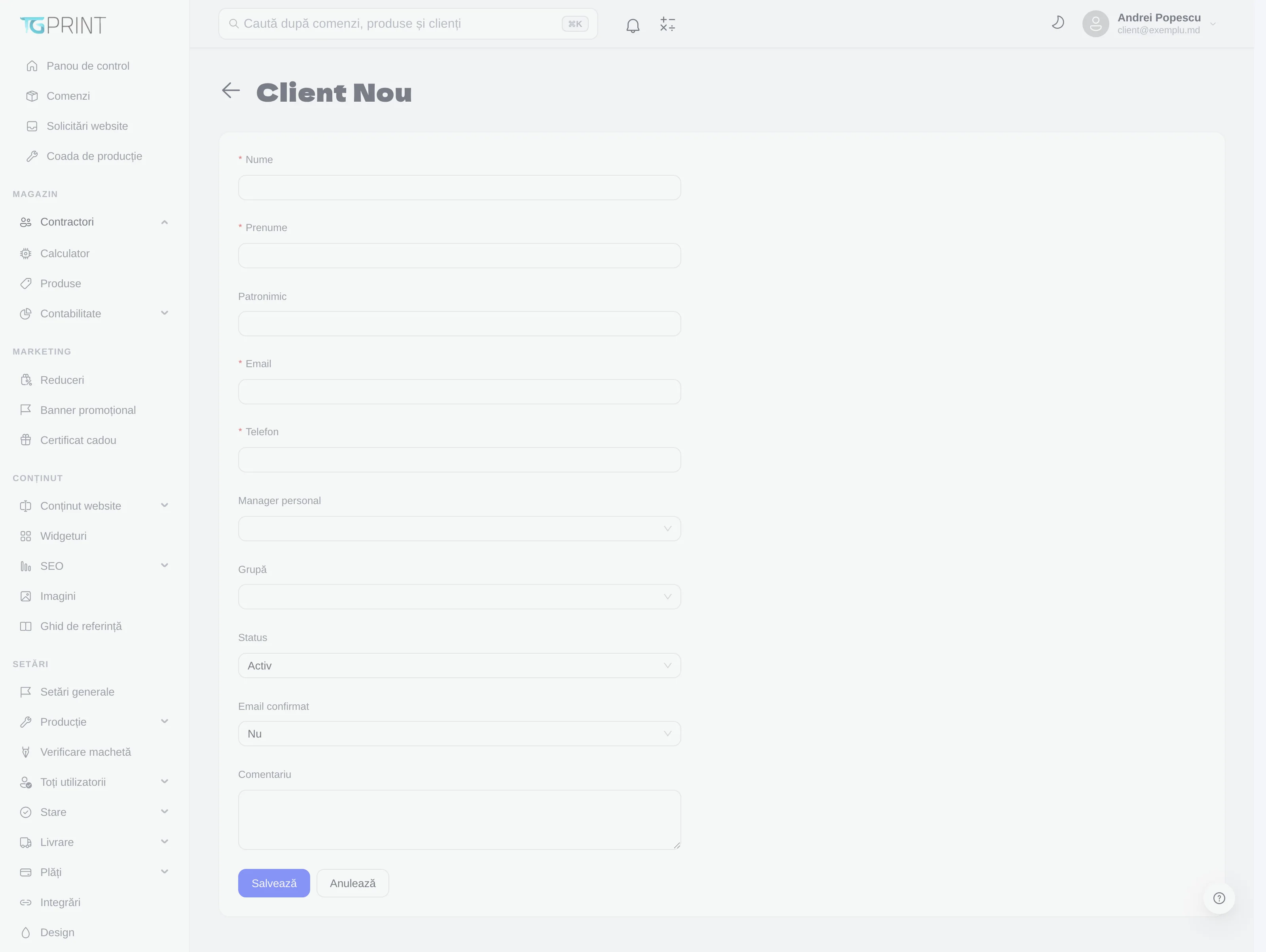
- Click Add Client.
- Fill in Name, Surname (Middle Name is optional), Email and Phone. The e-mail is the account identifier: if the customer later creates an account on the storefront with the same e-mail, their orders are linked to this record.
- Choose, where relevant, the Personal Manager (their orders will be assigned to that manager automatically) and the Group (the group discount applies to every order).
- Status — Active; an inactive customer can no longer sign in. Email confirmed — set Yes for a customer you created yourself, so they are not asked to confirm their e-mail.
- Write an internal Comment if it is useful and click Save.
Note. A customer created from the admin panel does not receive a password automatically. To reach their account on the storefront they use Forgot password? on the sign-in page and receive the access link by e-mail — see Signing in to the admin panel for the same mechanism.
Organizations
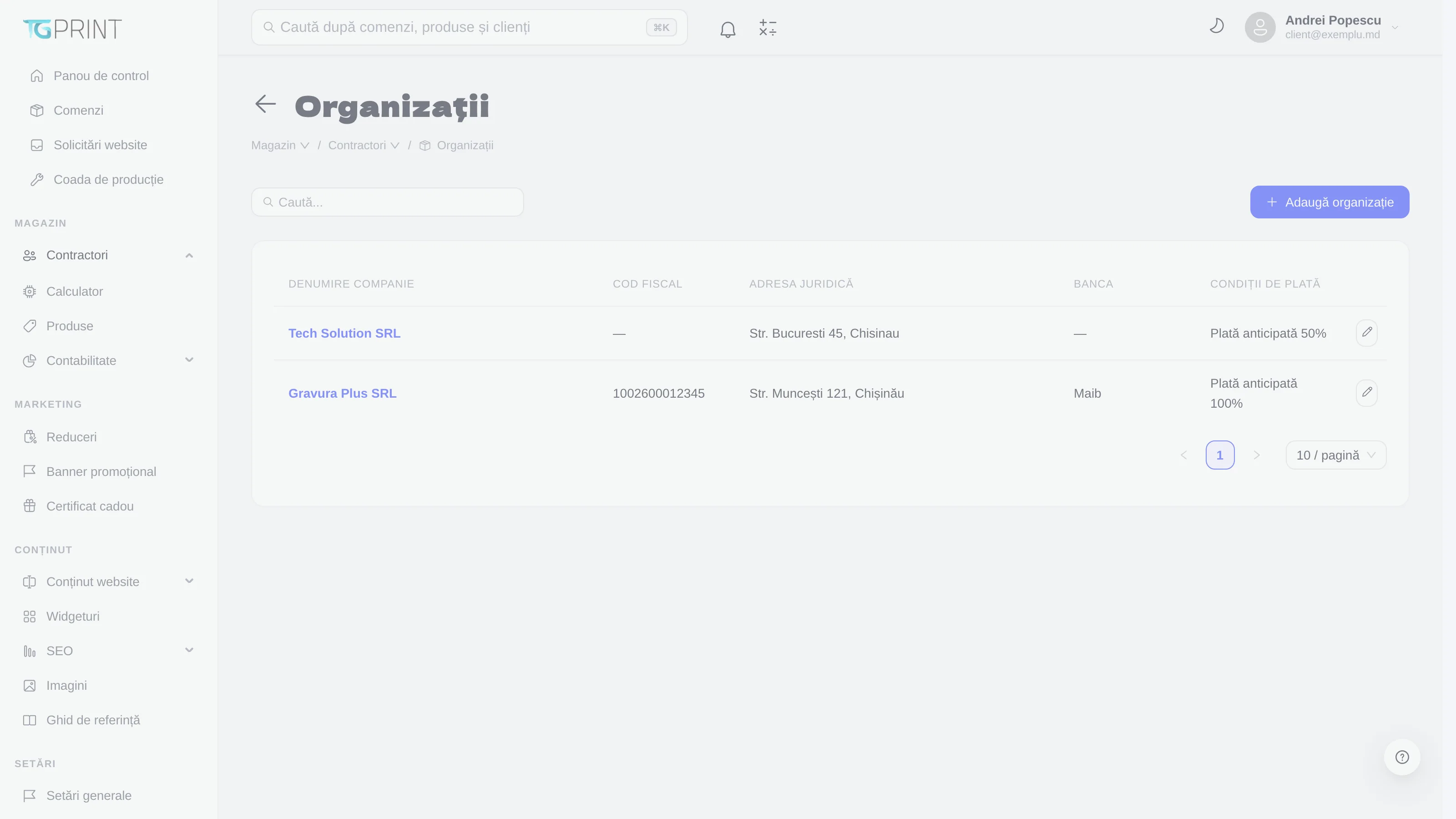
Organizations are the legal entities: corporate customers and the buyers the invoices are issued to. The list shows the Company Name, the Tax Code, the Legal address, the Bank and the Payment Terms; Add Organization creates a new one.
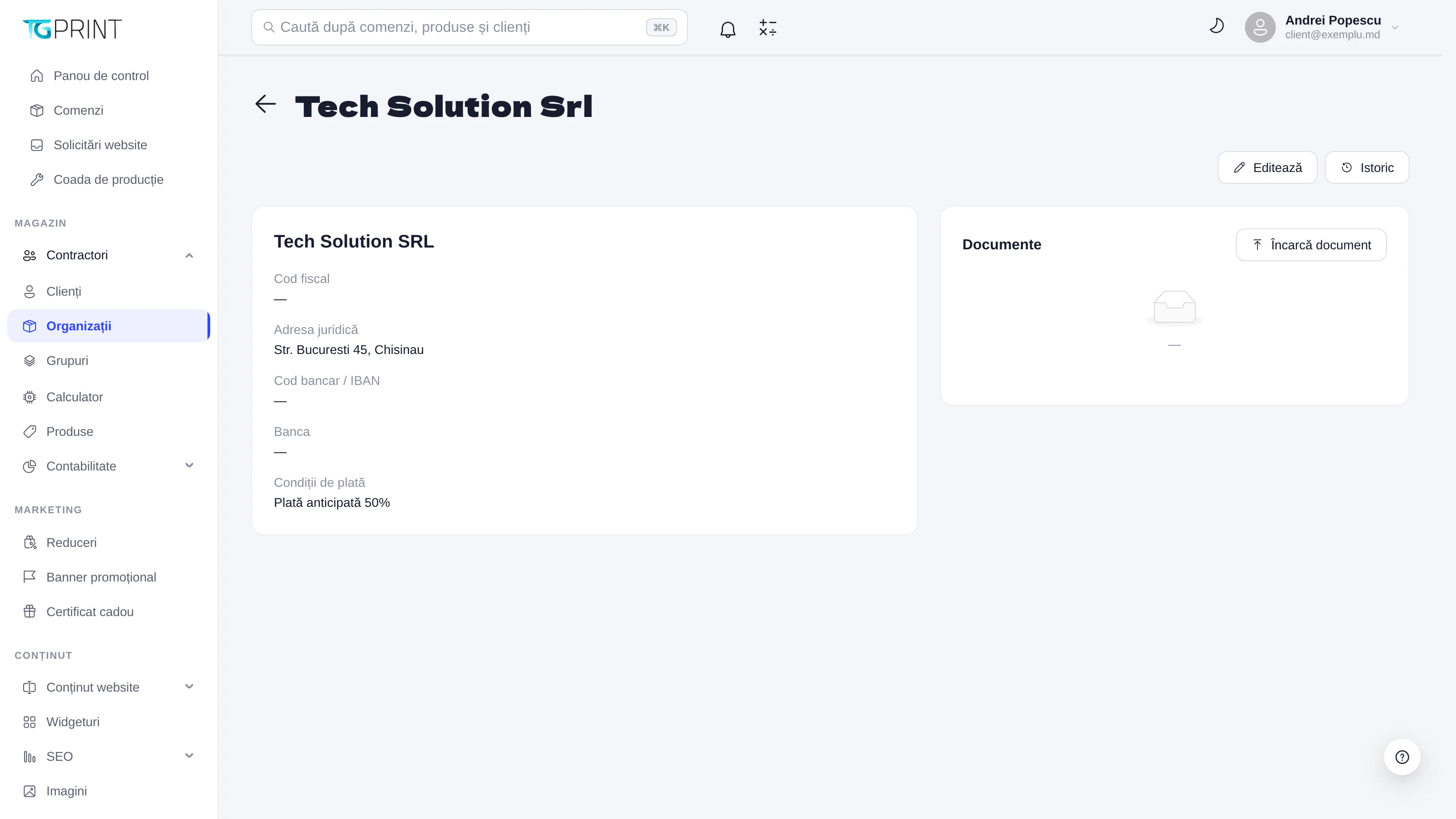
The organization record contains the Tax Code, the Legal address, the Bank code / IBAN, the Bank, the Payment Terms (for example Prepayment 50% — one of the terms defined in Settings → Payments → Payment Terms) and the Documents area, where you upload the contract or other papers (Upload document). Edit and History work just as they do for a customer. The organization's payment terms decide whether, at checkout, a corporate customer can choose to pay by invoice with a deadline instead of paying in advance — see Payments.
Groups
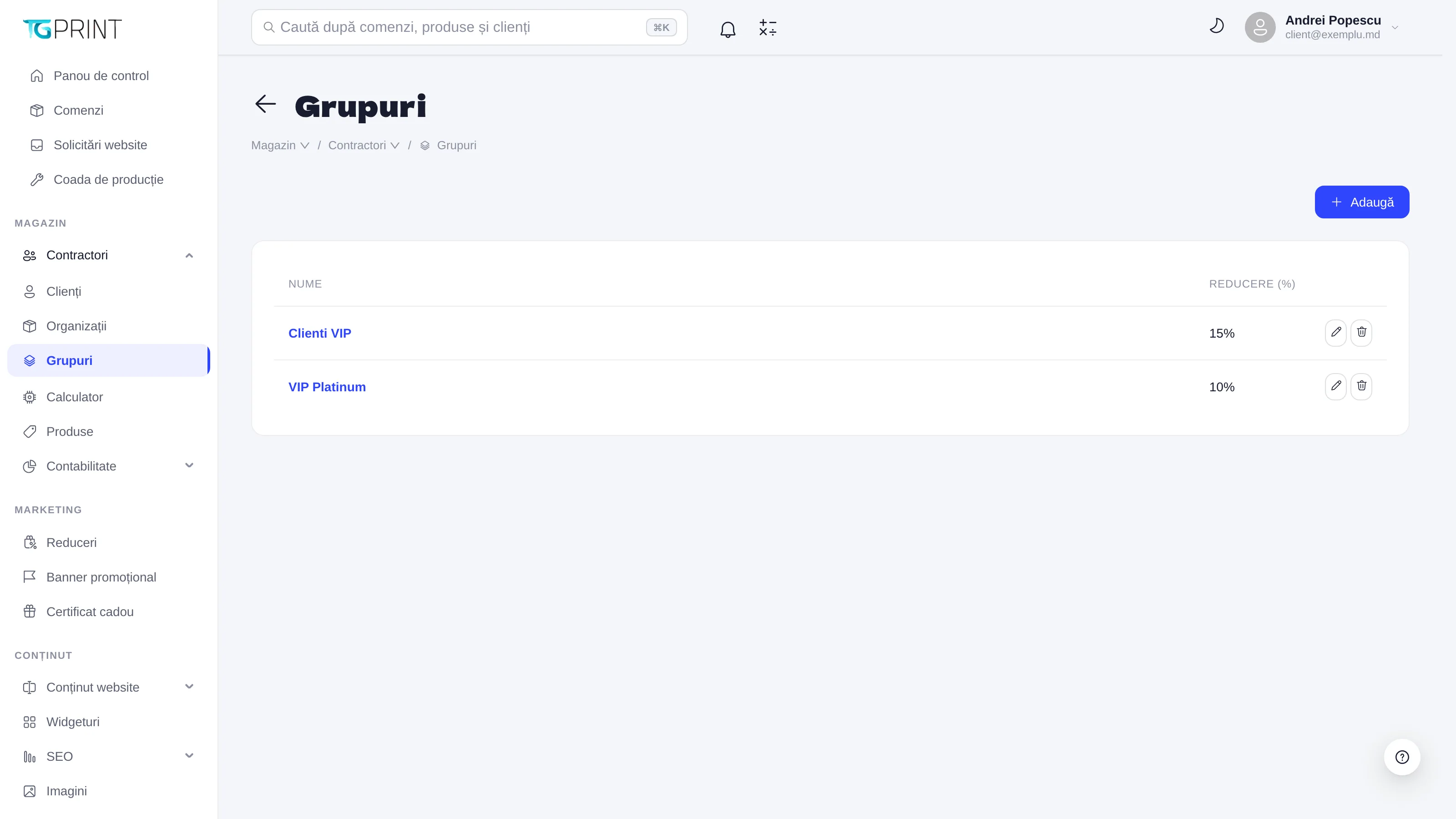
A group is a label with a discount percentage — for example VIP customers, 15%. The customer gets the group discount on every order, without a code, and the discount appears on the order in the Discount row. You create groups with Add (name + percentage) and assign them from the customer record, in the Group field. A customer can belong to only one group.
Note. The group discount and the discounts from Marketing → Discounts do not stack without limit: the stacking rules are described in Discounts and promo codes. When a customer qualifies for two favorable situations at once, check on a test order which discount they actually get.