Gift certificates
Certificates with a face value: creating them, their validity and using them at checkout.
Updated:
A gift certificate is a voucher with a fixed value. The certificate defines the value and the deadline; each certificate then has one or more codes, which the customer enters at checkout exactly like a promo code. You manage them from Marketing → Gift Certificate.
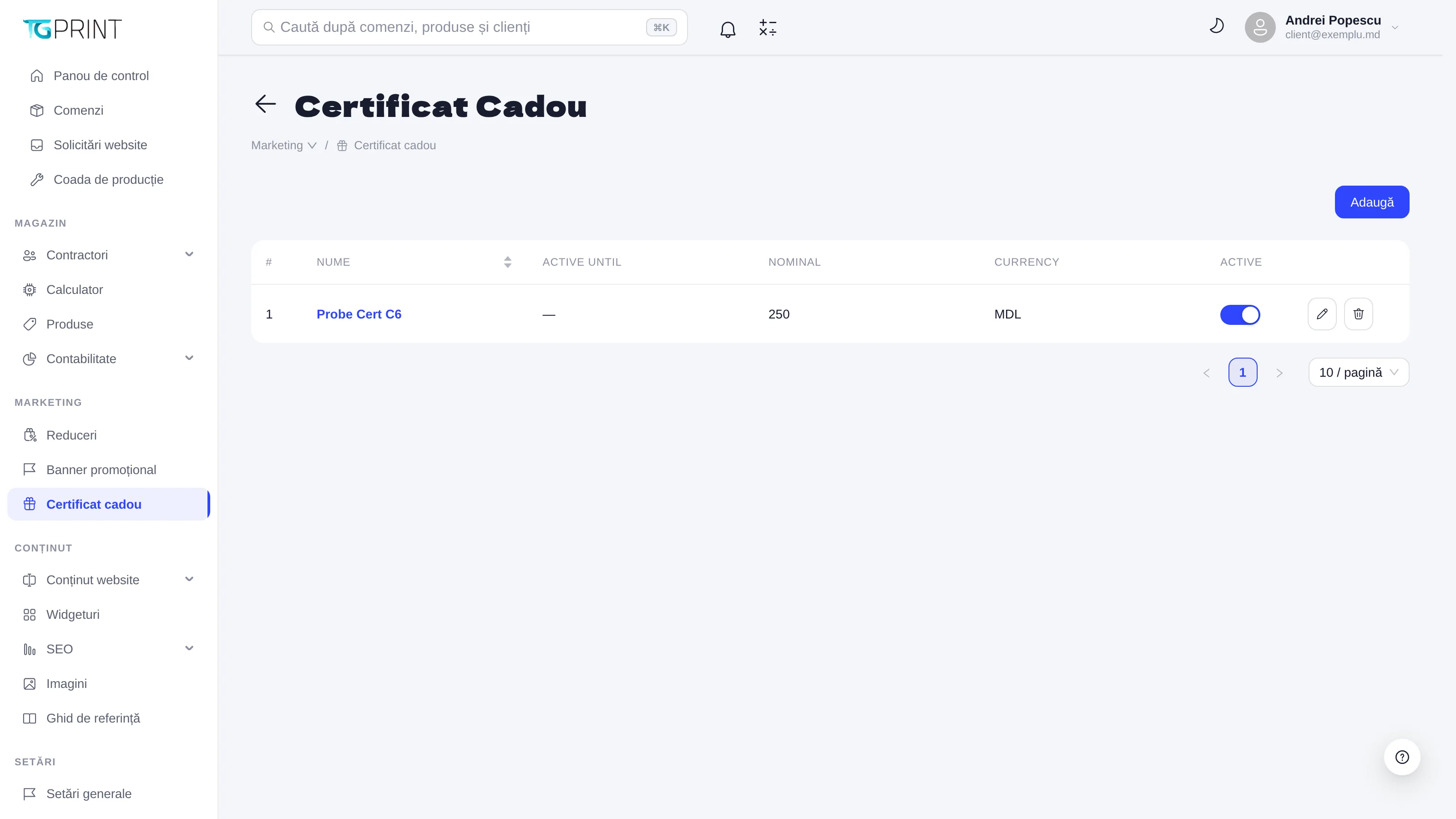
The certificate list
The table shows Name (click it to open the codes of the certificate), Active until (the date until which the codes can be used; — if there is no deadline), Nominal (the value), Currency and Active.
- The Active toggle switches the certificate on or off; a certificate that is switched off no longer accepts any code at checkout.
- The pencil button opens the edit window, with the same fields as on creation.
- The bin button deletes the certificate after confirmation — "Delete this certificate? Its promo codes will be deleted as well."
Add a certificate
- Click Add. The Add — Gift Certificate window opens.
- Fill in Name (required) and Nominal — the amount taken off the order, a positive number.
- Active until — optional, the last day on which the codes work. Leave it empty for a certificate without a deadline.
- Currency is fixed to MDL: "Certificates are applied in MDL (the currency of the store). Conversion of other currencies is not supported."
- Click Save. The certificate appears in the list, active, but still without codes.
The codes of a certificate
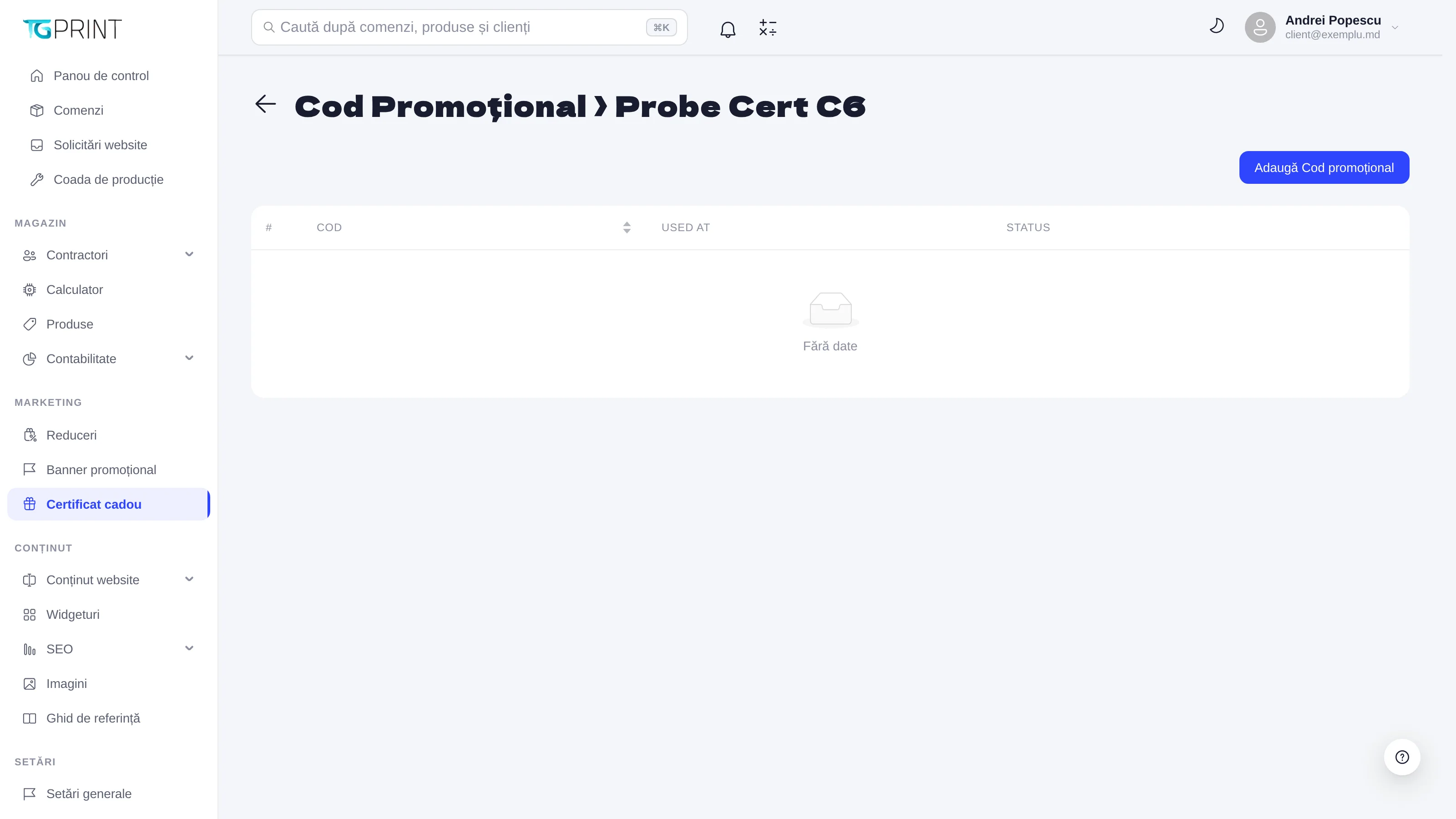
Click the name of the certificate in the list: the Promo Code › [certificate name] page opens, with the Code, Used at (the date and time it was used) and Status (Not used or Used, with the number of uses) table. Until the first code, the table shows No data.
- Click Add promo code. In the window, the Code field comes prefilled with a random 8-character code, without the letters and digits that are easily confused (0, O, I, l, 1). You can type your own code or generate another one with the refresh button next to the field.
- Click Save. The code is stored in upper case and must be unique across the whole store — it cannot coincide with the promo code of a discount.
- Repeat for every code you need; a certificate can have any number of codes. The bin button deletes a code, after the "Delete this promo code?" confirmation.
Using it at checkout
The customer enters the certificate code in the Promo code field at checkout and clicks Apply. The store checks whether the certificate is active and whether Active until has not passed, then subtracts the Nominal value from the total — but no more than the order subtotal. The reduction appears on the Discount row, in MDL. Once the order is placed, the code gets its date in Used at and the Used status; a certificate code can be used only once.
Note. A certificate is not split: if the face value is larger than the order, the difference is not kept for a future order.
See also Discounts and promo codes and How a customer orders on the site.