Price calculation
The Calculation tab of the product: formats, quantities, timeframes, the printing and finishing modules, the price table.
Updated:
The Calculation tab of the product sheet is the heart of the platform: here you describe what the product is made of and how its price is worked out, and the customer gets a calculator on the storefront that shows the price on the spot, for any combination. You do not enter final prices on the product — you build them from the materials and the operations with their prices from the Reference guide, multiplied by the quantity, the sheet layout and the coefficients you set here.
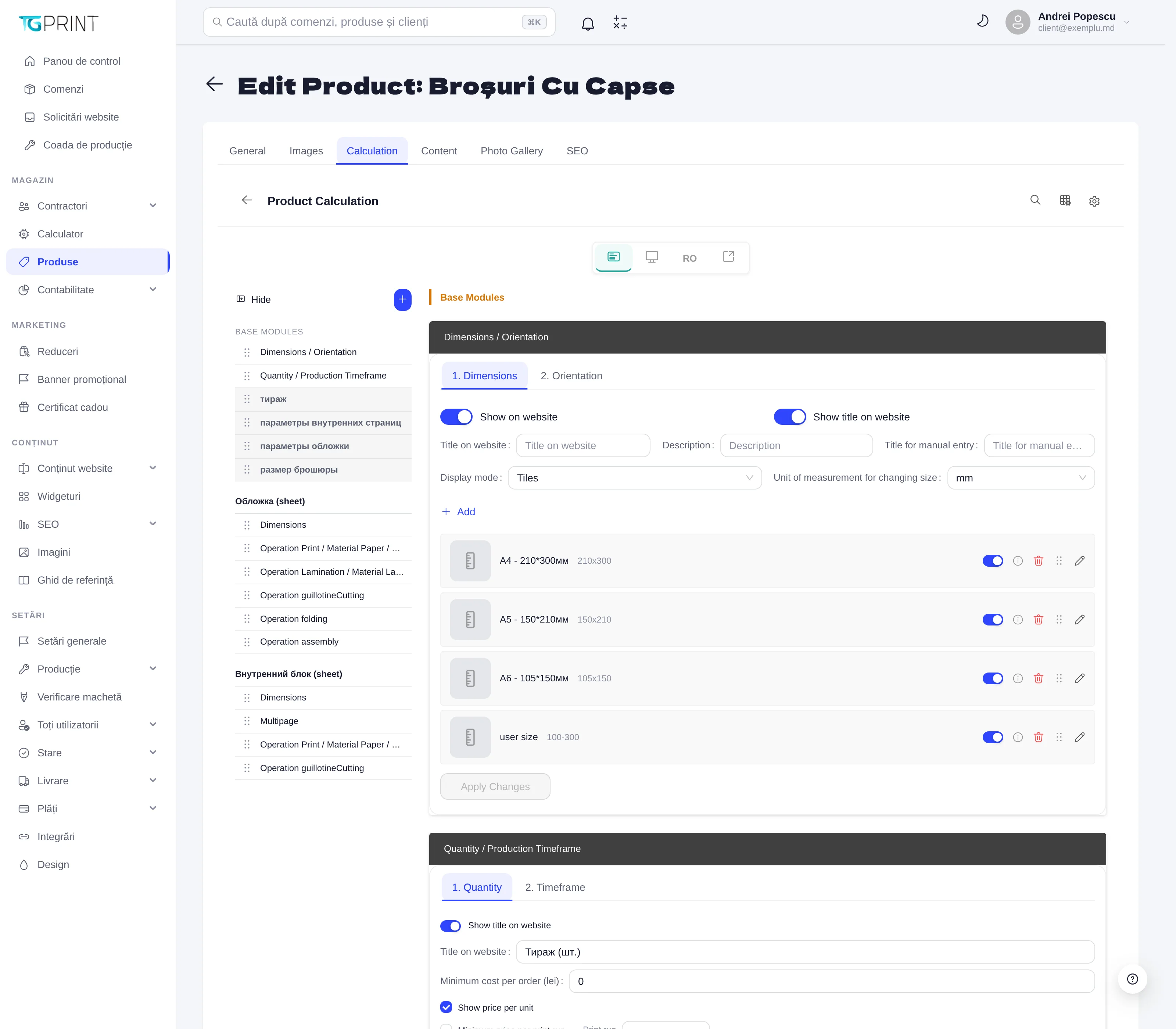
How it is organized
The Product Calculation page has a navigation with all the modules on the left, and the modules themselves expanded on the right, in the order of the navigation. There are two kinds of module:
- Base Modules — valid for the whole product: Dimensions / Orientation (the formats) and Quantity / Production Timeframe (the quantities and the timeframes). Below them you can add text modules (extra questions for the customer, for example “the parameters of the inner pages”) with the + button.
- Parts — the physical parts the product is made of, each with its own operation modules. A brochure has, for example, coperta (sheet) and blocul interior (sheet); every part has its own Dimensions (how the product format is mapped onto the sheet of that part), Module: printing, Module: lamination, guillotineCutting, folding, assembly, while the inner block also has Module: Multipage (the number of pages). A simple product (a flyer) has a single part.
Every module has the switches Show on website (the customer sees and chooses the option), Show title on website together with Title on website (the label of the step in the public calculator) and Show groupings on website (displays the options grouped). Whatever is hidden stays in the calculation but can no longer be chosen — useful for mandatory operations the customer does not have to decide about.
Note. Every module is saved separately, with its own Apply Changes: gray means it is saved, colored means it has unsaved changes. At the end, also click Save Changes at the bottom of the page. A module left with a colored button is the most frequent cause of “the price on the website did not change”.
Dimensions / Orientation
The 1. Dimensions tab defines the formats offered to the customer: Display mode (Tiles — tiles, or a list), Unit of measurement for changing size (mm), then the list of formats with Add: the name (А4 - 210*300мм), the dimensions (210x300), and optionally a user size format with a range (100-300) for dimensions entered by the customer. Title for manual entry is the label of the free field. 2. Orientation offers portrait or landscape, when it matters for the imposition.
In the Dimensions of a part, Dimension mapping appears: for every format of the product you choose the sheet size of that part (for example А4 210*300 → 421x300, that is the unfolded sheet of the cover), while for unmapped formats the Size coefficient rule applies (Increase / Decrease by a number of times or mm on Width / Height); the Result for unmapped product dimensions area shows what comes out. That is how the same product can have its cover and its inner block calculated on different sheets.
Quantity / Production Timeframe
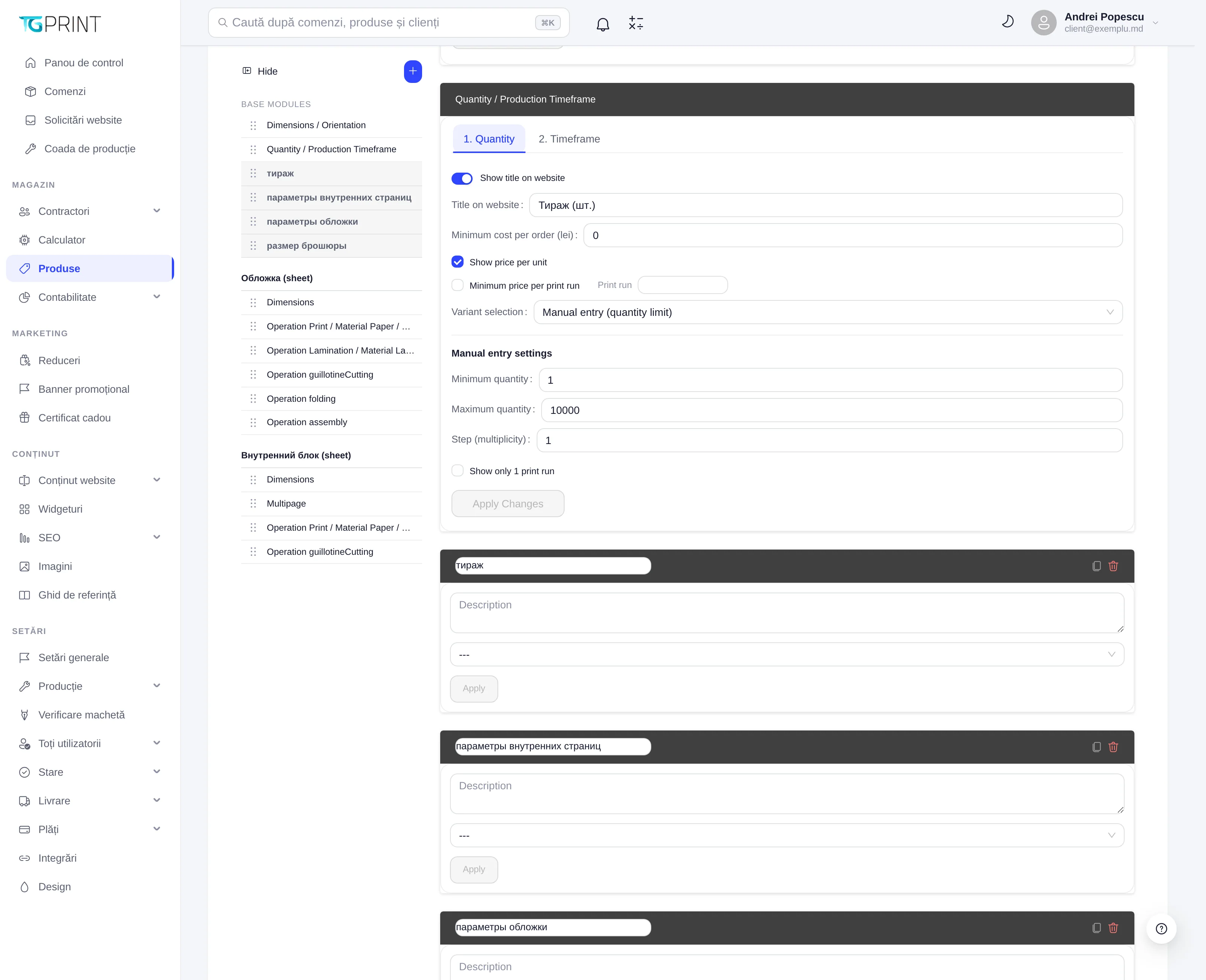
- Title on website — the label of the step (for example “Quantity (pcs)”).
- Minimum cost per order (lei) — the minimum price of an order: the total never goes below this value, whatever the quantity.
- Show price per unit — also shows the customer the price per unit. Minimum price per print run — with Print run set, the public calculator enforces a minimum total price for orders from that quantity upwards.
- Variant selection — how the customer chooses the quantity: from predefined steps or Manual entry (quantity limit), with Manual entry settings: Minimum quantity, Maximum quantity, Step (multiplicity) (other values are rounded to the nearest multiple). Show only 1 print run displays a single quantity.
- 2. Timeframe — the production timeframes offered (standard, rush), chosen from the templates in Settings → Production → Production timeframes; each of them can carry a price coefficient. See Production: calendar and timeframes.
The printing module
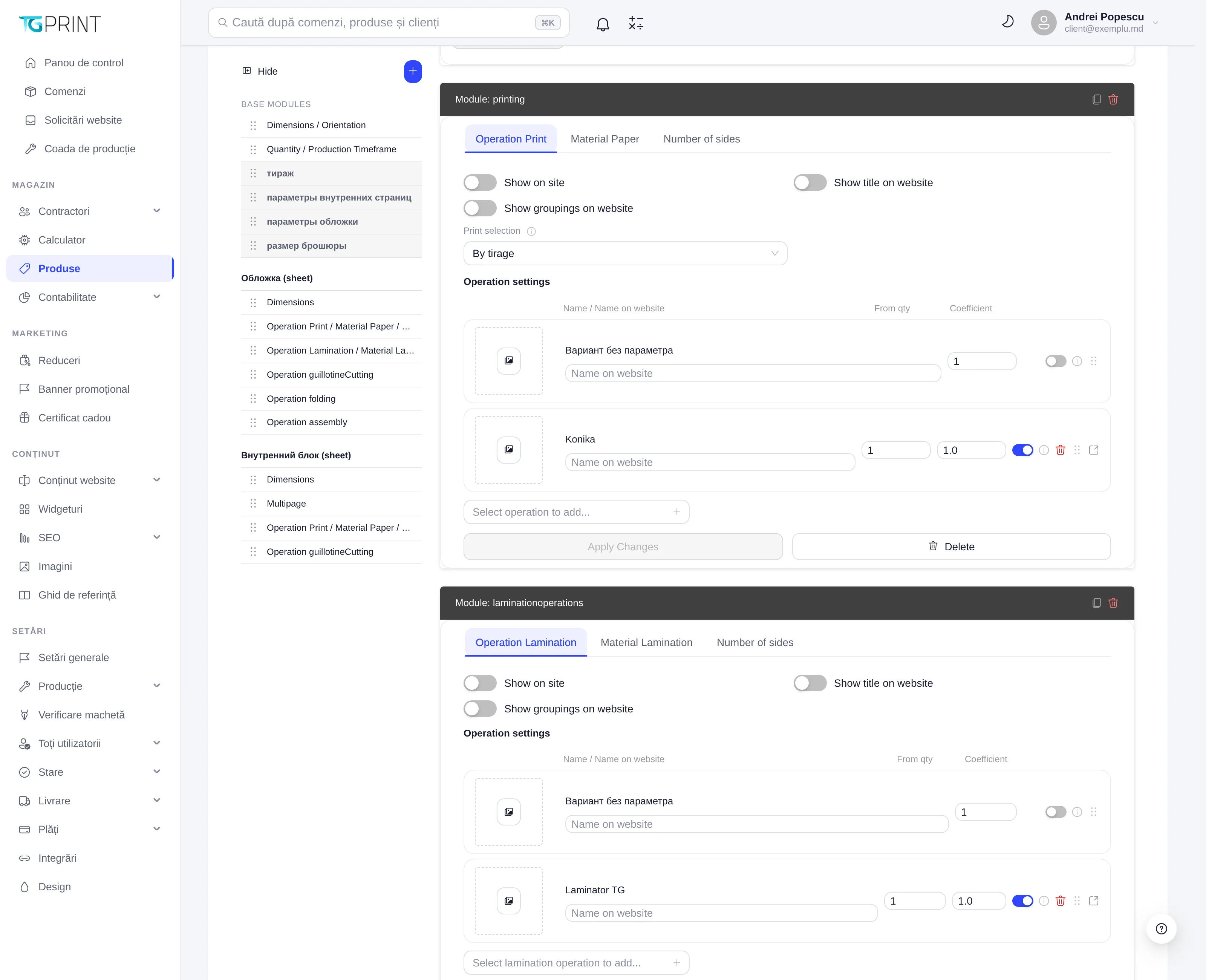
Module: printing combines three choices: Operation Print (the machine or the technology — for example Konika, from the operations reference book), Material Paper (the paper, from the materials reference book) and Number of sides (4+0, 4+4). Print selection decides how the printing is calculated: By tirage (the price of the operation by quantity steps) or by size. In Operation settings, every variant has Name / Name on website (the label the customer sees), From qty (the quantity from which the variant applies) and Coefficient (a price multiplier: 1 = the price from the reference book, 1.2 = +20%). Select operation to add... adds further variants; Delete removes the module from the part.
The finishing operations
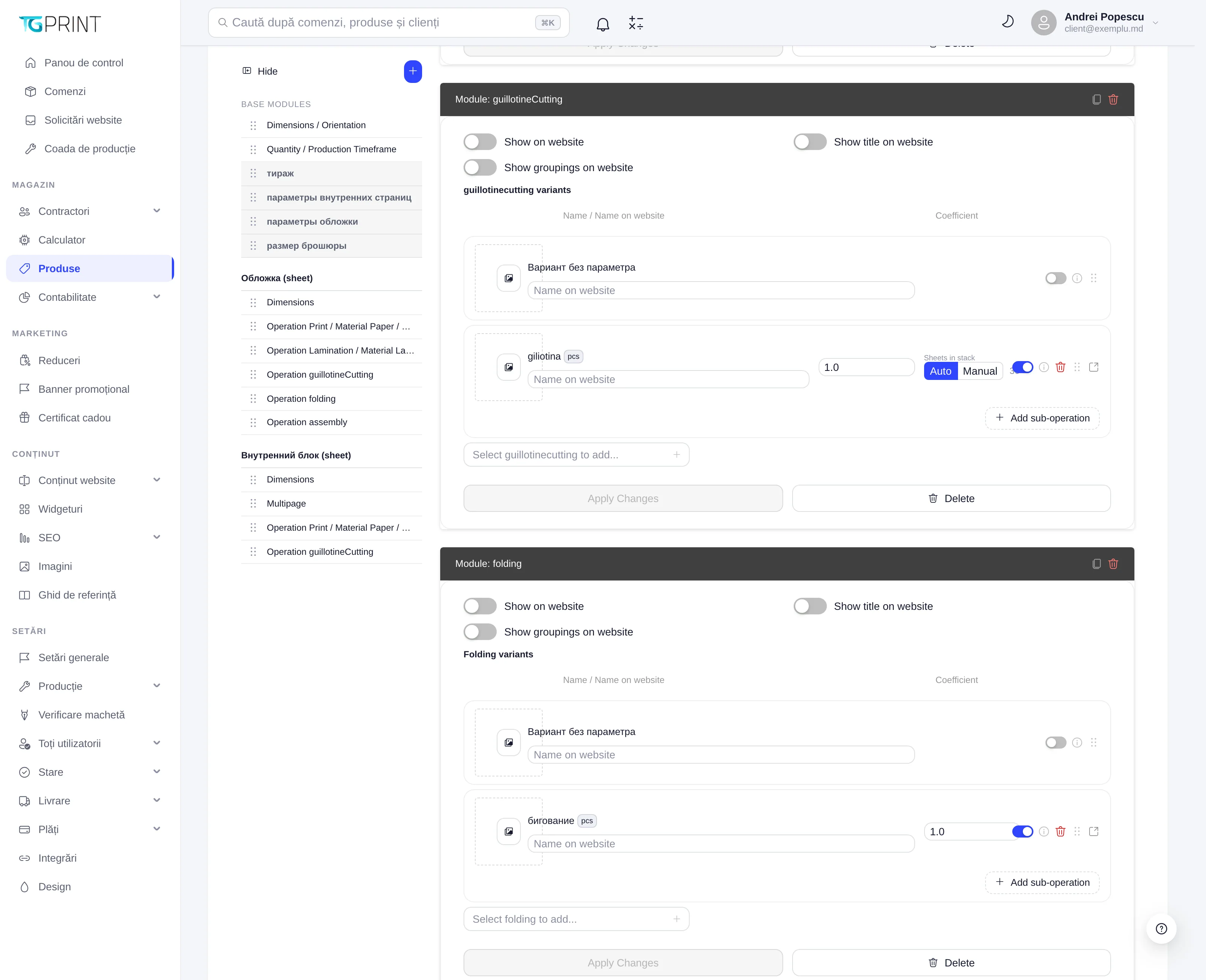
The lamination, guillotineCutting (guillotine cutting), folding (folding and creasing), assembly modules and the other additional operations all share the same structure: a list of variants (for example giliotina, бигование, сборка на скобу — the machines from the reference book), each with Name / Name on website and Coefficient; Add sub-operation adds a subordinate operation, and Select … to add... adds a new variant. The Вариант без параметра variant (no parameter) is the “without this operation” option, for when the customer is allowed to decline it.
The Multipage module (for the inner block) sets Count by Pages (counting by pages or by sheets), Selection on website (Choose from list) and Display (Radio + Icons), with the page steps offered (Quantity + Icon).
What the customer sees
The order of the steps in the public calculator follows the order of the modules in the navigation (drag them to change it). The RO icon at the top of the page switches the language of the labels you are translating, and the icons next to it open the calculator preview, exactly as the customer sees it — check the price of a few combinations after every important change. Whether the price shown to the customer includes VAT or not depends on VAT mode in General Settings.
Note. A printing module with no Material chosen, or without a format that has sheet dimensions, produces errors of the kind Format has no sheet dimensions set / Product too large for this sheet: the calculator cannot lay the product out on the sheet. Check the dimensions of the part first, then the material.