The menu and the footer
The main menu (automatic categories, submenus, order) and the footer (columns, contact details, social media, newsletter).
Updated:
The navigation menu at the top of the site and the footer (the bottom part of every page) are managed from two separate screens, under Content → Website Content: Menu and Footer Menu. Here you decide what each one contains — items, links, texts, in all the languages of the site. How it looks (style, colors, position) is chosen in Design; the Menu Design and Footer Design buttons in the top-right corner of each screen take you straight there.
The main menu
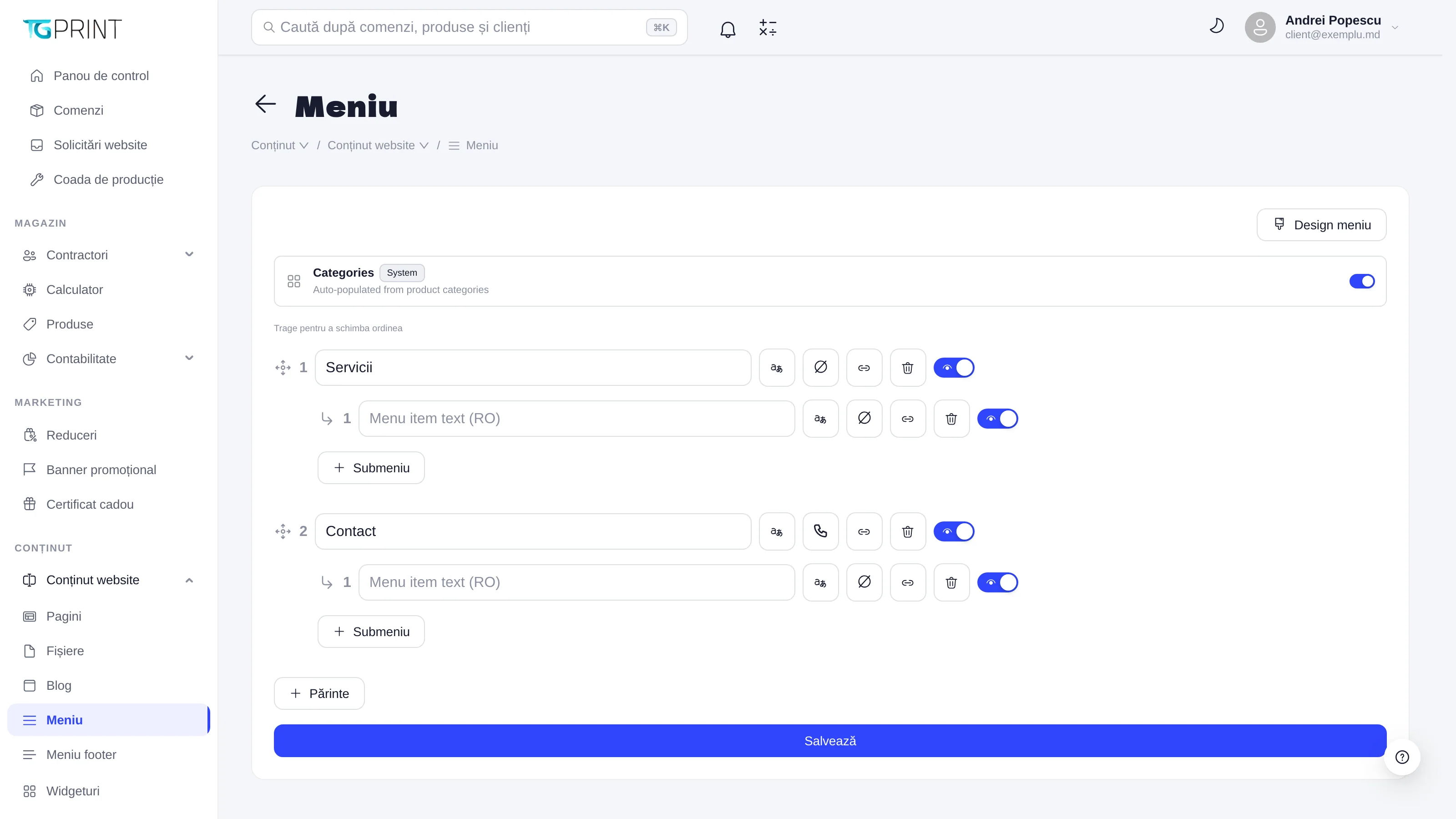
The first item, Categories, carries the System label and the explanation Auto-populated from product categories: on the site it expands automatically into the list of product categories, with their subcategories, as defined in Product categories. You cannot delete or move it; the toggle on its right shows or hides it. If the store has no category yet, the item does not appear on the site.
Below it come your own items, in the order they have in the menu (Drag to Change Order — press and hold a row, then move it up or down). Every row has:
- The text field — the name of the item in the language the panel is open in (Menu item text (RO)).
- The translation button — opens the Translations window, with one field for English, Romana and Русский; click Save in the window.
- The icon button — pick an icon for the item (optional).
- The link button — opens Add Href, where you write the address: External link or relative path..., that is a path inside the site (for example
/contact) or a full link to another site. - The bin — deletes the item, together with its submenu.
- The eye toggle — an active item appears on the site; an inactive one stays saved, but hidden.
Under every parent item there are the second-level rows, marked with the ↳ arrow and numbered separately; Submenu adds another row there. Parent adds a new first-level item at the end of the list.
When you are done, click Save: the menu is saved for all languages at once, and the site picks it up on the next page load. If an item has no text in one language, the site shows the text from another language instead of an empty row.
Note. Changes on this screen are not saved automatically — if you leave the page without clicking Save, you lose them.
The footer
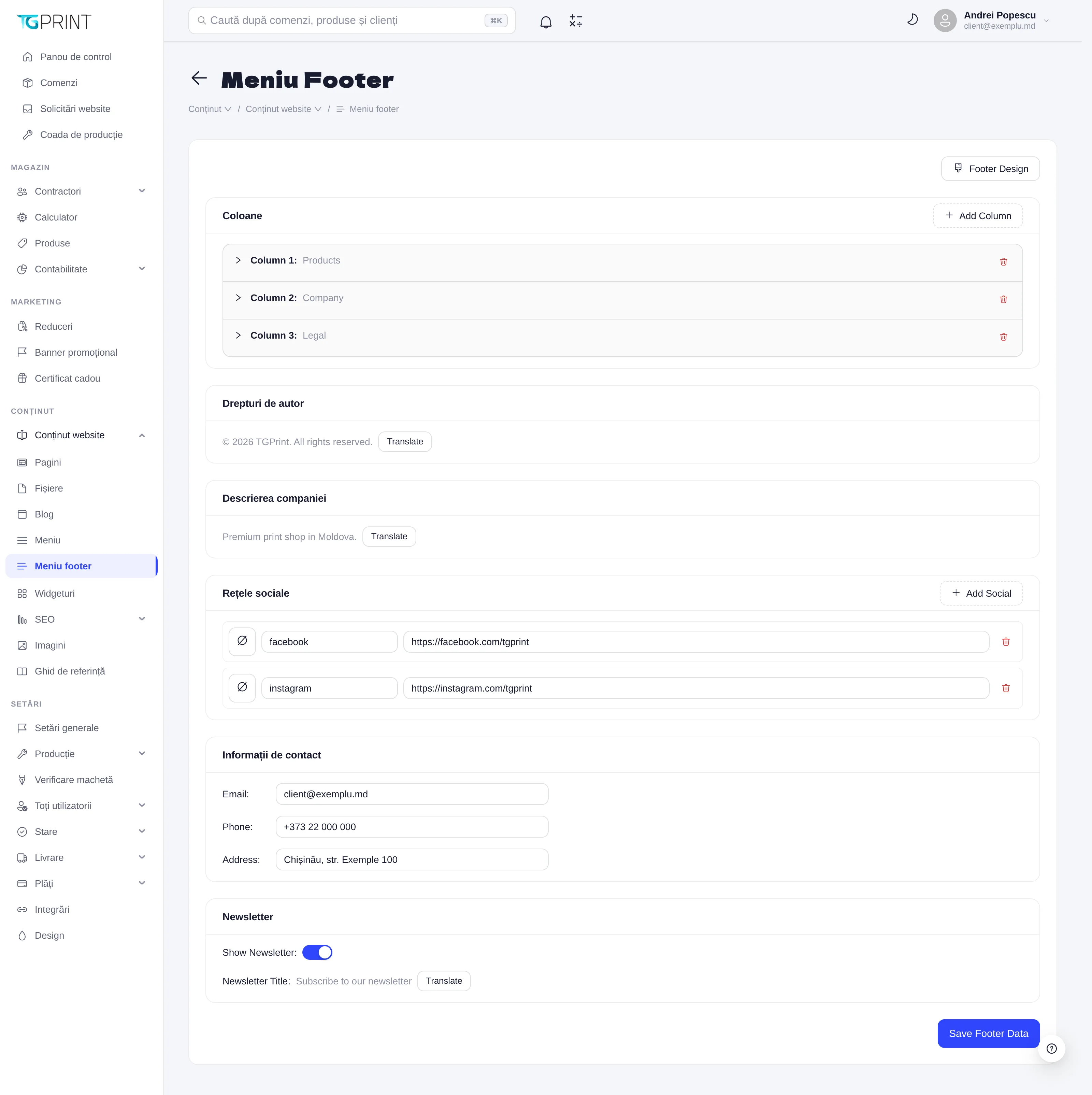
Footer Menu is a long form, with one section per footer area. The texts the visitor sees in their own language have a Translate button next to them: the Translate: … window opens with the fields EN, RO, RU; click Save in the window. In the form you see the text from the first language filled in, or (empty) if there is nothing.
- Columns — the columns of links in the footer. Add Column adds one; each appears collapsed, as Column 1: followed by the title. Open it to set Column Title (with Translate) and the Links list: Add Link adds a link with Text (translatable) and Href (the address, for example
/page-url). The bin on the right deletes the column or the link. - Copyright — the copyright line of the footer.
- Company Description — a short text about the company, shown in the footer.
- Social Media — Add Social adds a row with the icon selector, the Platform name (e.g. Facebook) field and the address of the profile (
https://...). - Contact Info — Email:, Phone:, Address:, exactly as you want them to appear on the site.
- Newsletter — Show Newsletter: shows or hides the subscription form in the footer; Newsletter Title: is its title (with Translate).
- Click Save Footer Data. All the sections are saved together, with a single button; until then, nothing reaches the site.
Downloadable documents (a price list, an offer) are linked in the footer columns through their /files/… address — see Images and files.