Statuses and rules
The statuses of orders and of website requests, the tabs, the notifications and the rules for automatic transitions.
Updated:
Every order and every website request has, at any moment, a status — "Awaiting artwork", "In print", "Done". The statuses are not fixed: you define them in Settings → Status, with the name, the order, the color, the notifications sent to the customer and the tabs they are grouped into in lists. Rules complete the picture: they move the order automatically from one status to another when something happens (the payment is confirmed, the artwork is accepted), so that the manager doesn't have to do the obvious steps by hand.
Order statuses
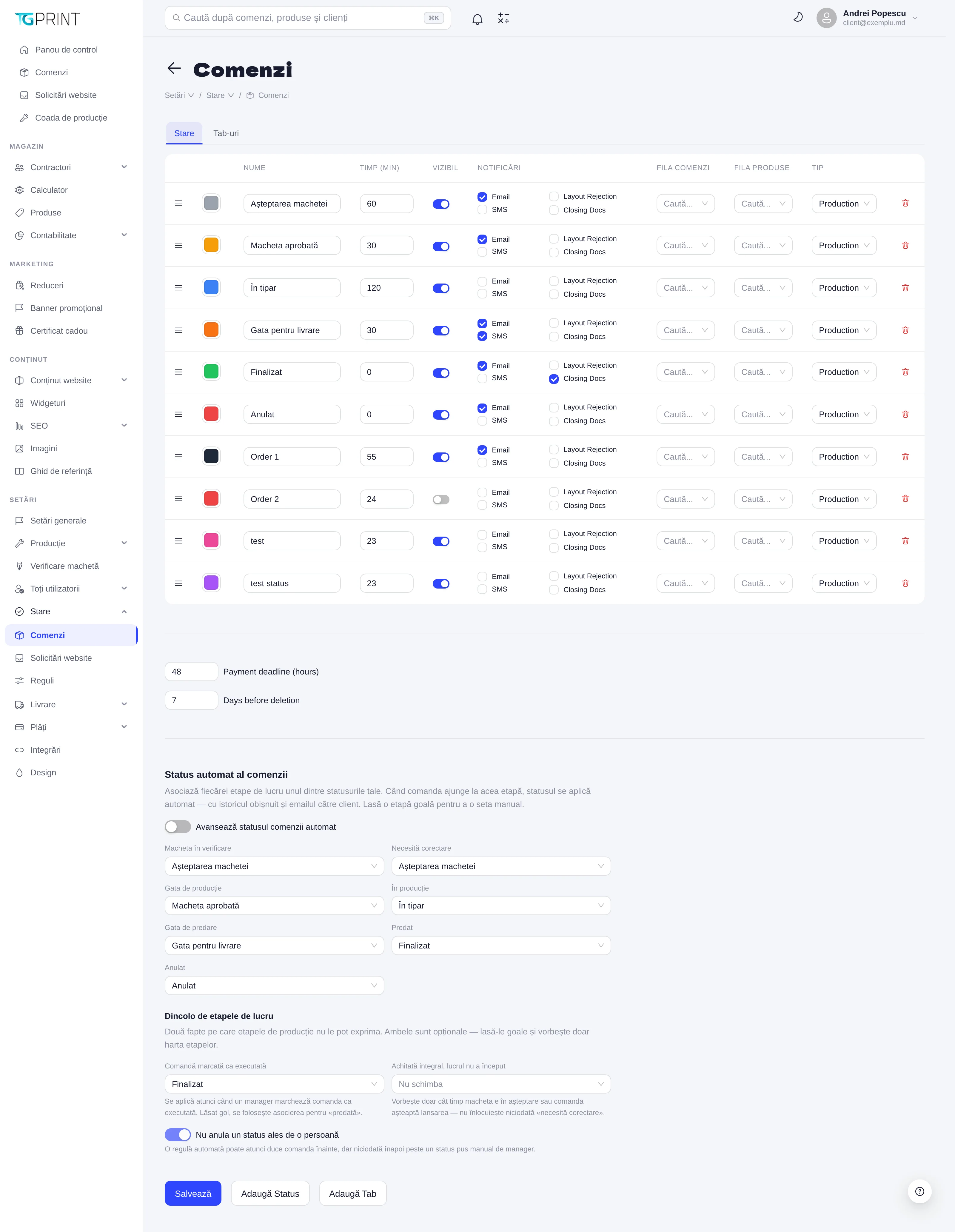
Settings → Status → Orders has two areas: Status (the list of statuses) and Tabs (the groups at the top of the order list). Each status has:
- Name — the text displayed in the admin panel and, if the status is visible, to the customer; it can be translated for each language of the site.
- Time (min) — the indicative duration of the stage, in minutes; used when estimating deadlines.
- Visible — whether the customer sees the status in their account and in emails. Internal statuses (an accounting check, for example) are left invisible: the customer sees the last visible status.
- Notifications — what the customer receives when the order enters the status: Email, SMS (if a messaging integration is active), Layout Rejection (the artwork rejection message, with the reason) and Closing Docs (the closing documents: invoice, delivery act).
- Orders Tab and Products Tab — the tab in the order list, and respectively in the production queue, where the orders with this status appear. The Search... fields pick the tab from among those defined in the Tabs area.
- Type — the Production checkbox marks the status as a production stage: the orders in it enter the Production queue.
The order of the statuses in the list is the order in which they appear in the status selector on an order and in the filter buttons on the Dashboard. Drag the rows to change it; click Save at the end.
Note. Deleting a status used by existing orders leaves them without a status (they show up as — in the list). Before deleting, move the orders to another status or rename the status instead of deleting it.
Below the table there are two more thresholds: Payment deadline (hours) — how many hours the customer has to pay an order before it is considered overdue — and Days before deletion — after how many days an abandoned order is deleted.
Automatic order status
Still on the Status → Orders page, the Automatic order status section links the platform's workflow stages (the moments every order goes through: the artwork arrives for checking, it is rejected, it is approved, production starts, the order is ready, it is handed over, it is cancelled) to your statuses. When the order reaches a stage, it automatically receives the associated status, with the usual history entry and the email to the customer, as if a manager had changed it.
- Turn the Advance the order status automatically toggle on. When it is off, the map below is purely informational and every status is set manually.
- Choose the matching status for each stage: Artwork under review, Needs correction, Ready for production, In production, Ready for handover, Handed over, Cancelled. A stage left empty stays to be set manually.
- Fill in, if you want, the two situations in Beyond the work stages that the production stages do not express: Order marked completed (the status applied when a manager marks the order as completed; empty = the same as for "handed over") and Paid in full, work not started (the status for an order paid in full that is still waiting for its artwork or for its launch; it never replaces "needs correction").
- Leave Never undo a status a person chose on: an automatic rule can move the order forward, but never back over a status set manually by a manager.
- Click Save.
Note. There are two automation mechanisms that coexist: the stage map here (triggered by the events of the production flow) and the Rules in Status → Rules (triggered by the payment and artwork conditions, described below). For a new shop, start with the stage map — it covers the usual cases — and add rules only for the exceptions.
Website request statuses
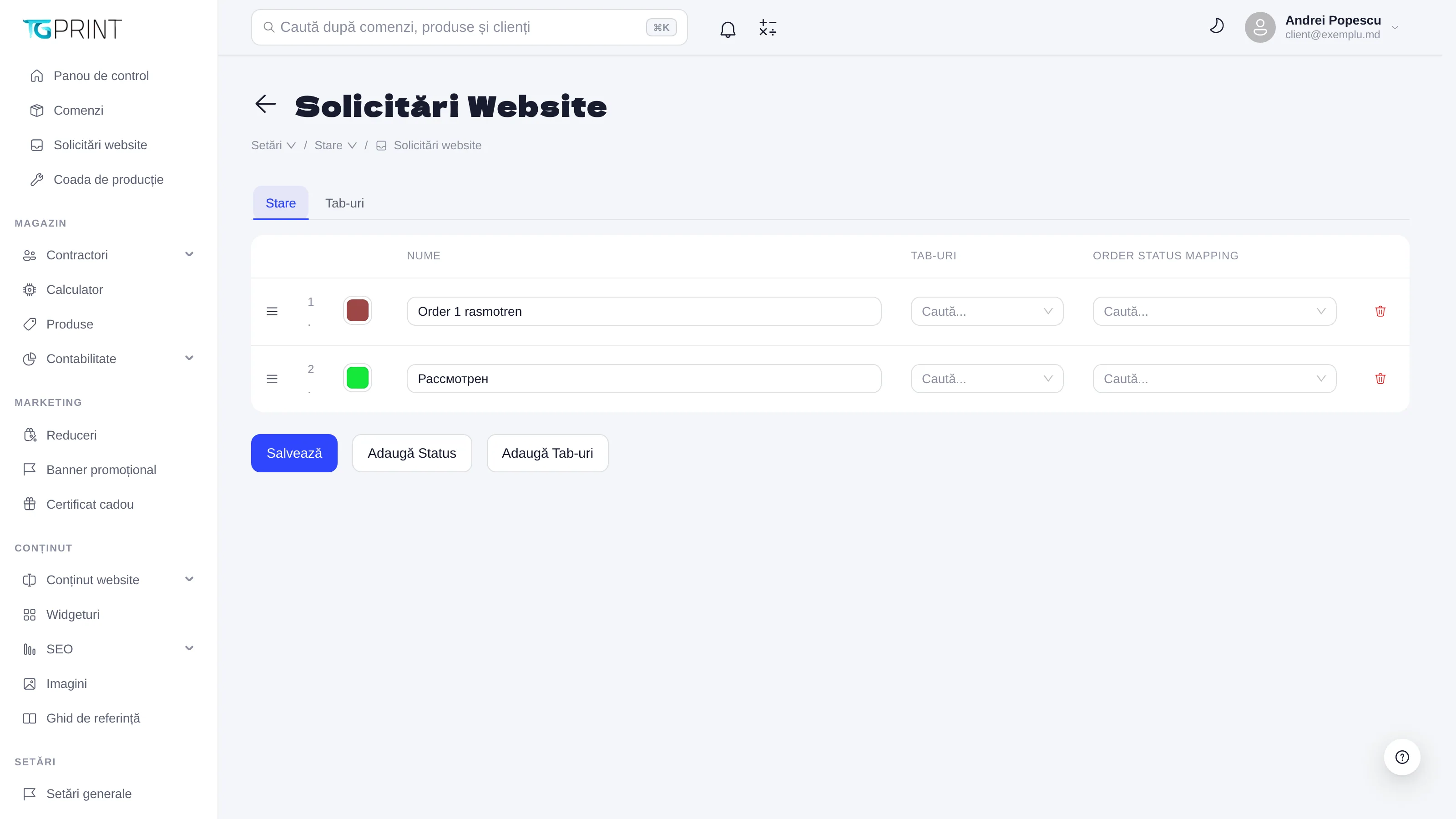
Settings → Status → Website Requests defines the statuses of the requests received from the site's forms ("New", "In review", "Completed"), also with Tabs for grouping them in the list. The Order status mapping column links the status of a website request to the status the order created from it receives: when you click Create Order on a request, the order starts directly in the mapped status. Add Status and Add Tabs create new entries; Save applies the changes.
Rules
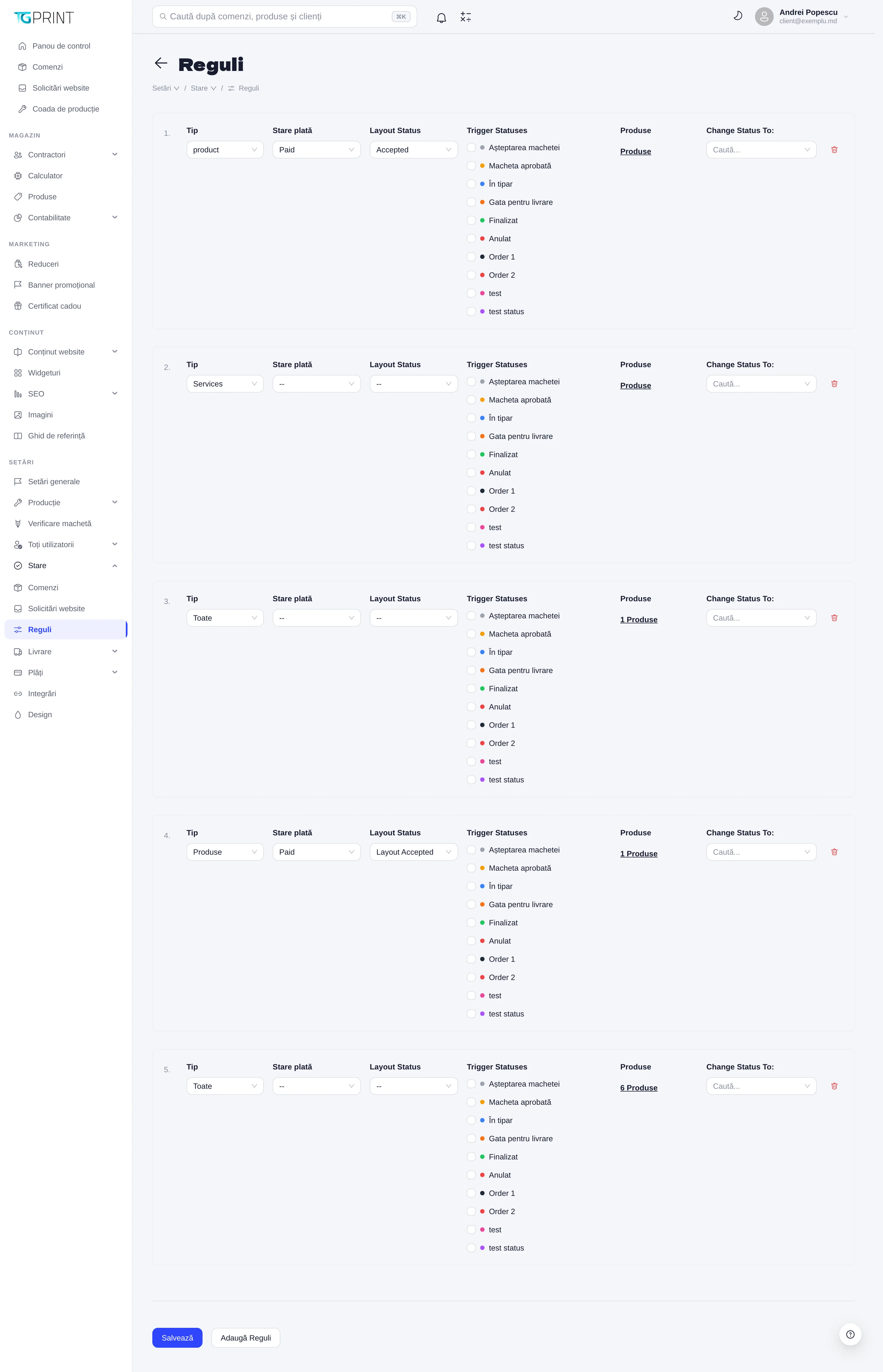
Settings → Status → Rules automates status transitions. A rule says: for the orders of a certain type, when the payment and the artwork match the conditions below and the order is in one of the trigger statuses, move the order to the target status. The fields of each rule:
- Type — the type of orders it applies to: product (catalog products) or Services (services, for example the artwork check or design work).
- Payment Status — the payment condition: Paid (the order is paid), or -- if the payment doesn't matter.
- Layout Status — the artwork condition: Accepted (artwork approved), or -- if it doesn't matter.
- Trigger Statuses — the statuses the rule applies from; tick one or more (for example Awaiting artwork and Artwork approved). An order in any other status is not touched by the rule.
- Products — optional, restricts the rule to certain products.
- Change Status To — the status the order lands in when the conditions are met.
The rules are evaluated on every relevant event — marking the payment, approving the artwork, changing the status manually — in the order shown on the page. The classic example: Type product, Payment Status Paid, Layout Status Accepted, triggers Awaiting artwork and Artwork approved, target In print — a paid order with good artwork goes into production on its own.
Note. A rule cannot work around what is missing: if the product requires artwork and none has been uploaded, the order will not reach production regardless of the payment. Check the manual flow first, then automate it.