Product categories
The structure of the catalog: creating, editing and ordering categories.
Updated:
The catalog is organized into categories: every product sits in one or more categories, and the customer reaches it on the storefront through the Categories page and through the menu. Categories are managed from Shop → Products — the Products screen starts with the list of categories, and the products are seen inside each category.
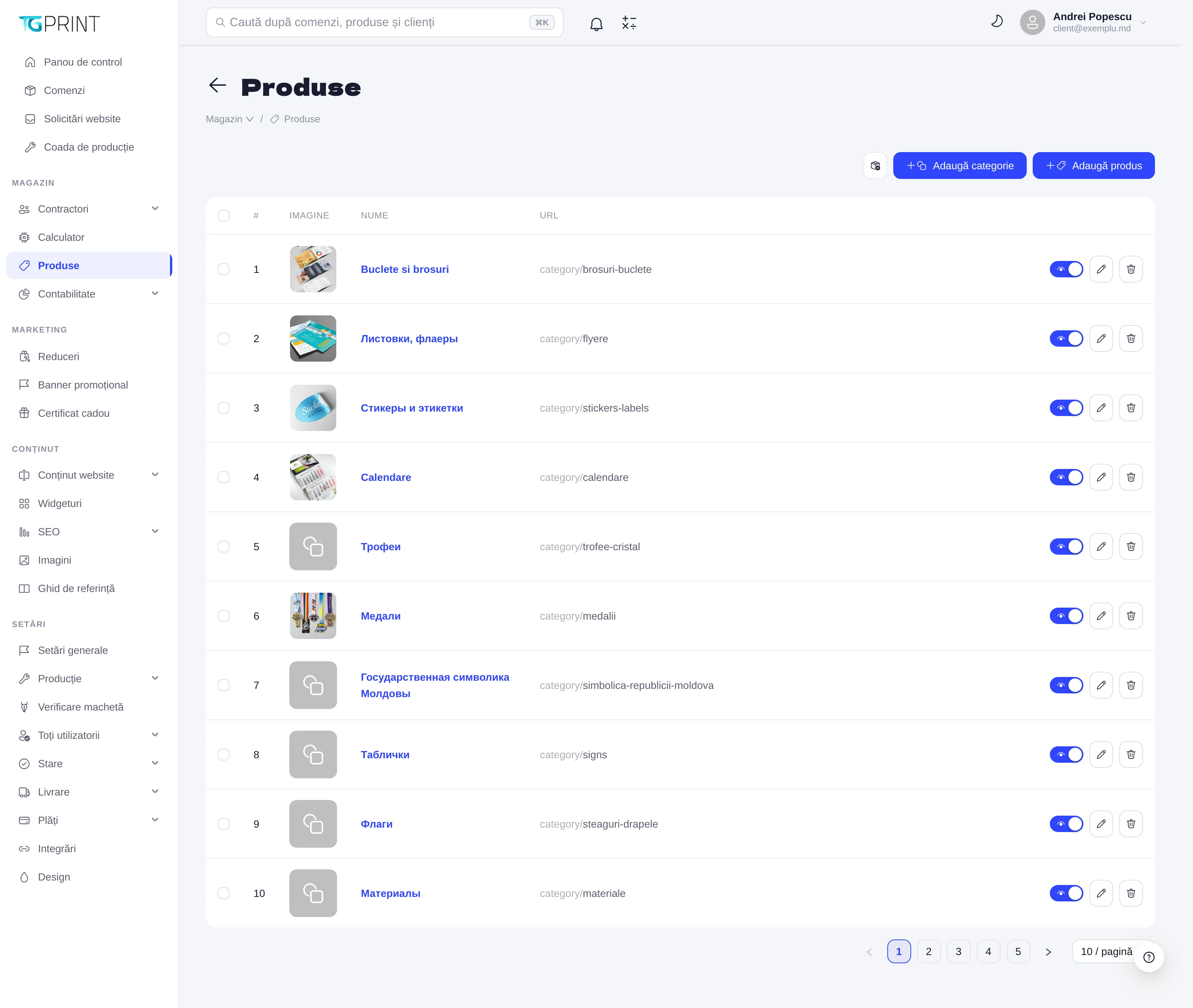
The list of categories
The table shows # (the position), the Image, the Name and the URL of the category (of the form category/brosuri-buclete — the address on the storefront is built from it). The two buttons at the top create a new category or a new product; the product asks from the start which category it goes into. Clicking the category name opens its products.
The products of a category
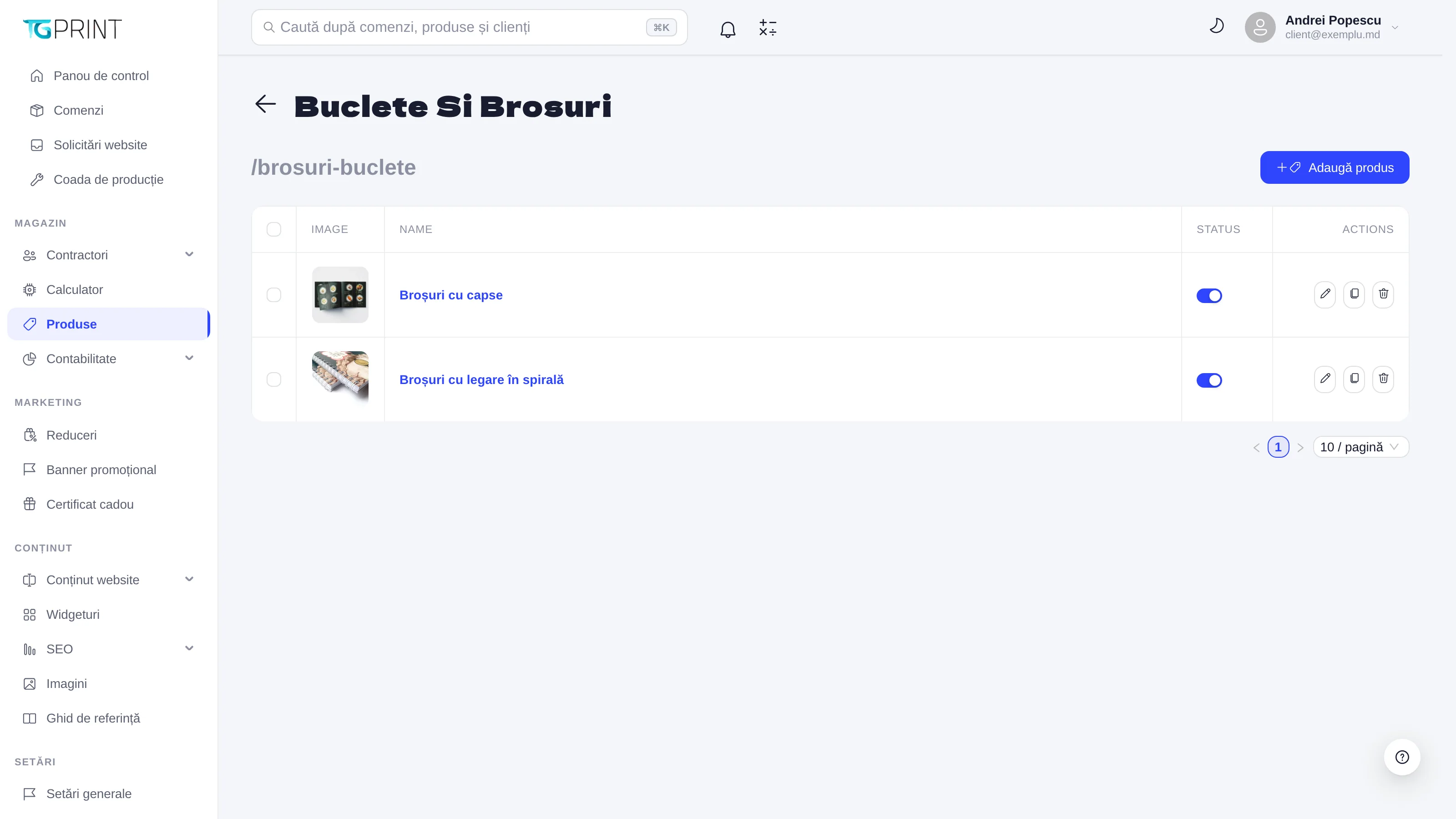
A category page lists its products: Image, Name, Status (active or not) and Actions (edit, delete). Add Product creates a product with the category already filled in. Clicking a product opens the product sheet.
Editing a category
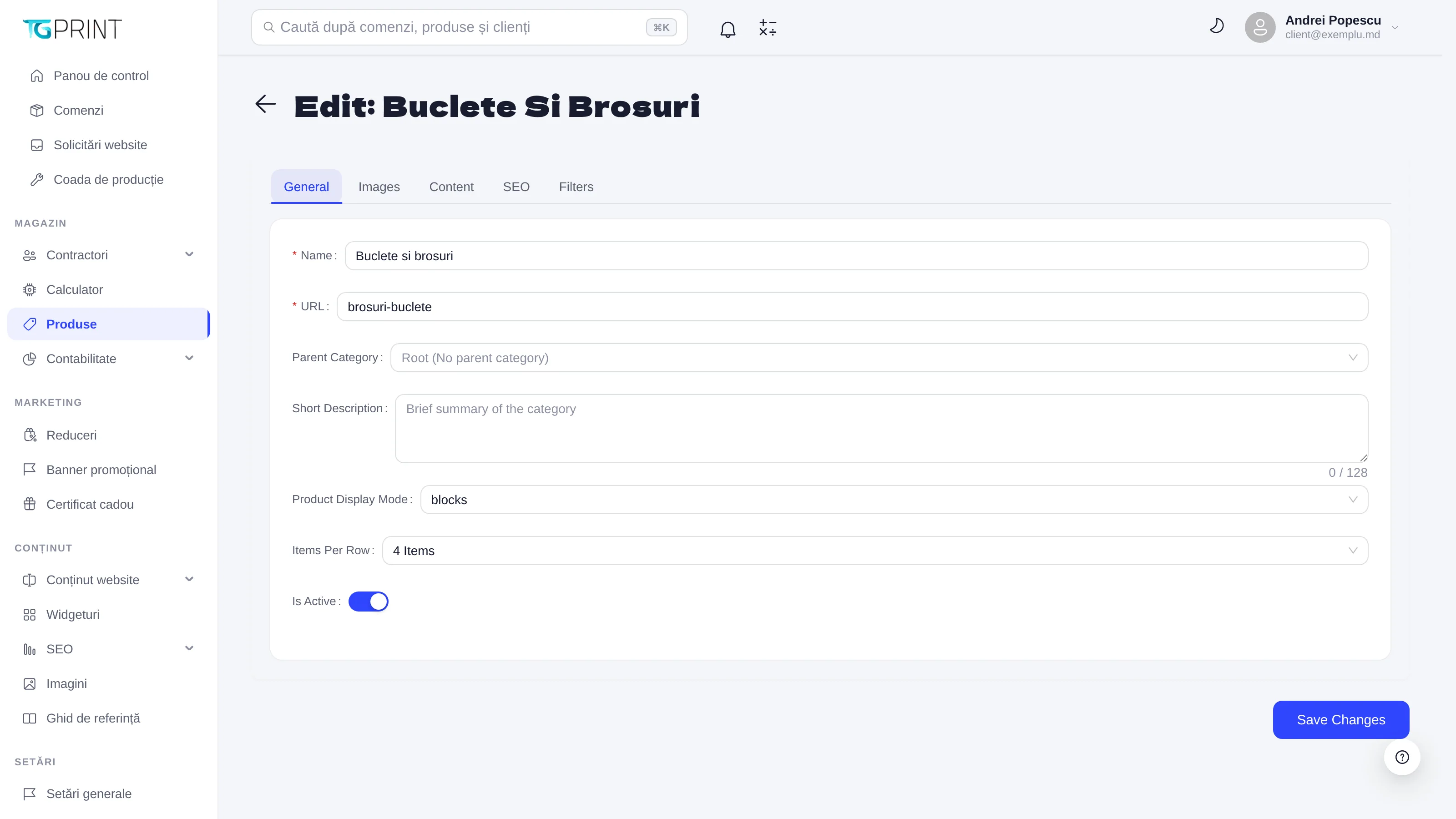
Open the category and click edit (the pencil). The form has five tabs:
- General — Name (shown on the storefront, translatable), URL (the segment of the address; it is generated from the name, but you can type it by hand — lowercase letters, digits and hyphens), Parent Category (Root (No parent category) for a top-level category, or the category it nests under — subcategories appear in the menu as a submenu), Short Description (up to 128 characters, under the title of the category page), Product Display Mode (blocks — cards with an image — or a list) and Items Per Row (how many cards per row: 4 Items by default). Is Active turns the category on or hides it on the storefront, without deleting it.
- Images — the image of the category, used on the Categories page and in the menu with images.
- Content — text and blocks displayed on the category page, above or below the product list (the same editor as in Pages).
- SEO — the title, the description, the keywords and the canonical address of the category page; the same set of fields as for a product, described in The product sheet.
- Filters — the filters offered to the customer on the category page (by the characteristics of the products).
Click Save Changes after your changes.
Order and structure
The order of the categories in the list (the # column) is the order in which they appear on the storefront and in the menu generated automatically from the categories — see The menu and the footer. A category with no active products appears on the Categories page without a product counter; an inactive category disappears from the storefront together with its products, even if those products stay active.
Note. Do not delete a category that has products: you leave them with no way in on the storefront. Move the products first (from each product sheet, the Categories field) or switch the category off with Is Active until you decide.