The product sheet
Creating a product and the tabs of its sheet: general, images, content, photo gallery, SEO.
Updated:
A product in the catalog is more than a name and a photo: it has an address, categories, texts in several languages, images for the catalog and for its own page, SEO rules and — most important of all — a price calculator. All of this lives in the product sheet, split into tabs: General, Images, Calculation, Content, Photo Gallery, SEO. Price calculation has a chapter of its own, Price calculation; here are the other five tabs.
A new product is created with Add Product from Shop → Products (or from a category page); its sheet opens straight away, on the General tab. Every tab has its own Save Changes button — save the tab before moving on to the next one.
General
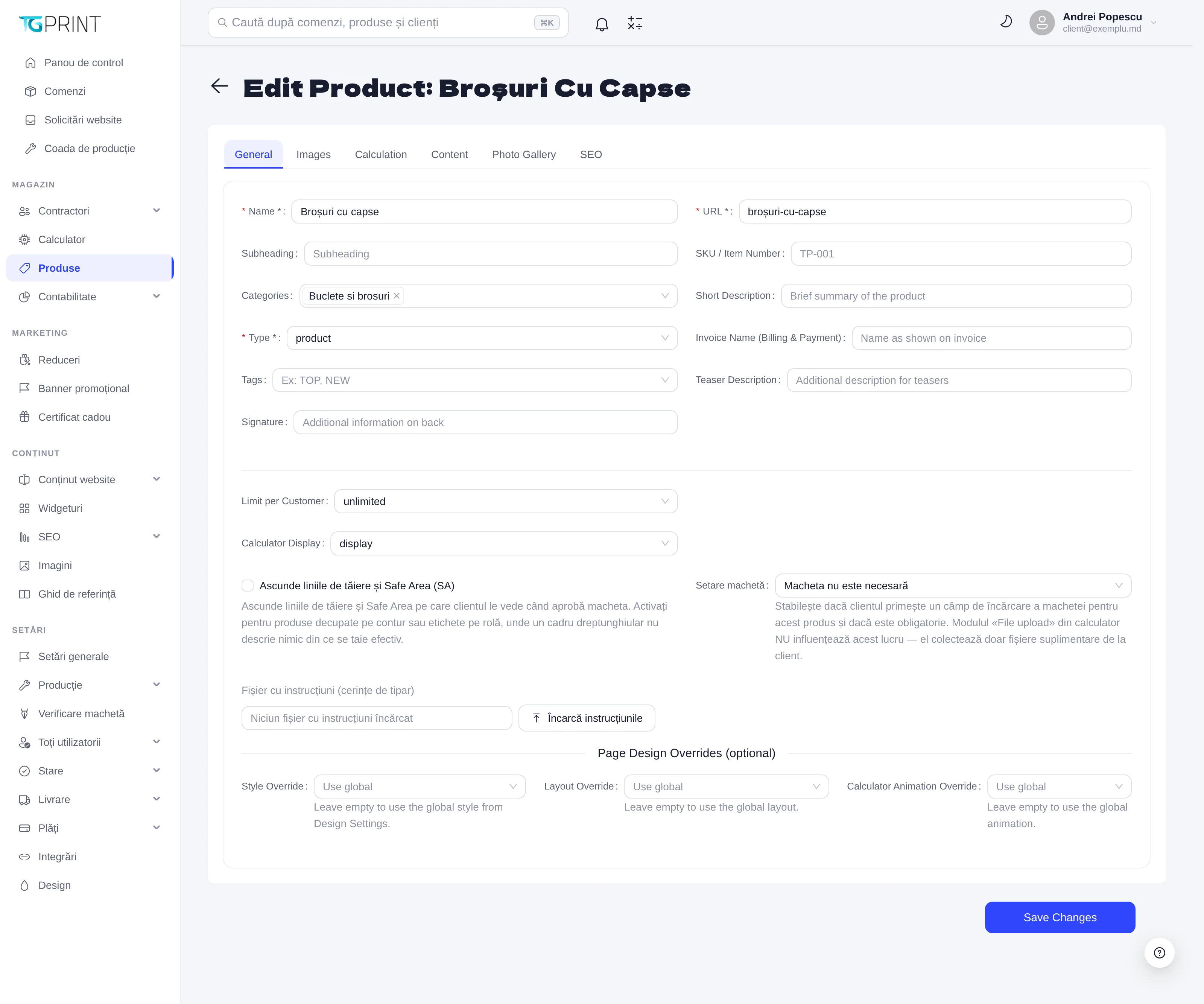
- Name — the name shown on the storefront and in the admin panel. URL — the segment of the page address (
/products/brosuri-cu-capse), generated from the name; change it only before publishing, otherwise the old links break (or add a redirect in SEO). - Subheading — the subtitle under the name, on the product page; SKU / Item Number — the internal code; Categories — one or more categories the product appears in; Short Description — the summary used in cards and lists.
- Type — product for printed products; other types for services. Invoice Name (Billing & Payment) — the name used on the invoice, if it differs from the name. Tags (for example TOP, NEW) — labels shown on the card. Teaser Description and Signature — additional short texts (the signature appears on the back of the catalog card).
- Limit per Customer — how many pieces one customer can order (unlimited by default). Calculator Display — display shows the calculator on the product page; when it is hidden, the product is presented without a price, with a quote request only.
- Remove display of crop lines and Safe Area (SA) — for products cut to shape or labels on a roll, where the rectangular frame on the artwork preview does not describe what is actually cut.
- Layout Setting — decides whether the customer gets the artwork upload field in the cart and whether it is mandatory: Artwork not required, optional or mandatory. With mandatory artwork, the order cannot be completed without a file. The File upload module in the calculator does not affect this — it only collects additional files.
- Instructions file (print specs) — a PDF with the technical requirements (bleed, resolution, colors) that the customer can download before preparing their artwork; Upload instructions.
- Page Design Overrides (optional) — Style Override, Layout Override, Calculator Animation Override: leave Use global so that the product follows the style from Settings → Design; choose a value only for exceptions. See Design.
Images
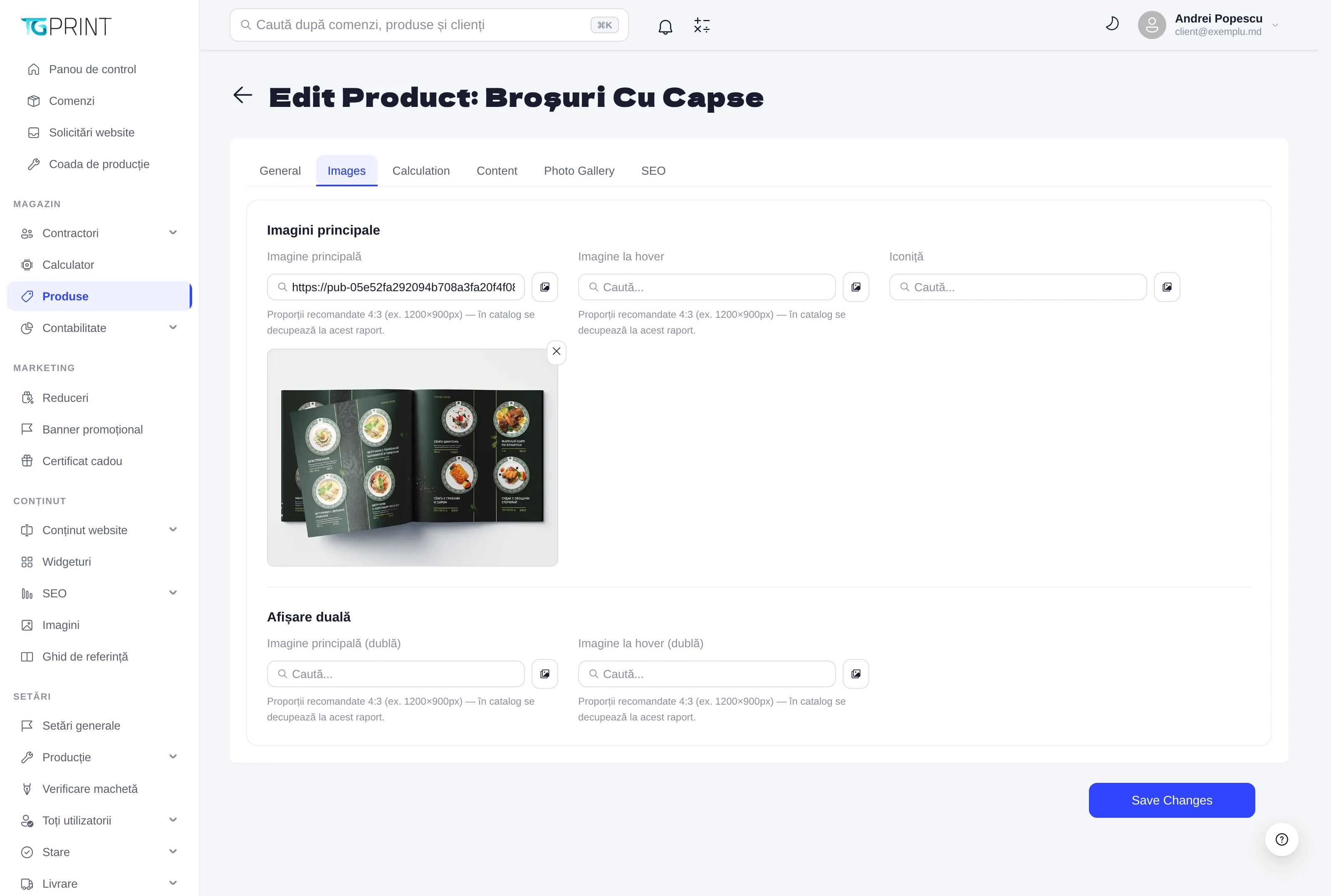
The images on this tab are the ones used in the catalog (cards, lists, recommended products); the gallery on the product page is separate, in Photo Gallery.
- Main Image and Hover Image — the card shows the first one and swaps it for the second when the customer hovers over it. Recommended proportions 4:3 (for example 1200×900 px): in the catalog the image is cropped to that ratio.
- Icon — the small pictogram used in the menu and in compact lists.
- Double View Display — a second pair (Main Image (Double), Hover Image (Double)) for the layouts that show two faces of the product.
The images are chosen from the Images library or uploaded on the spot.
Content
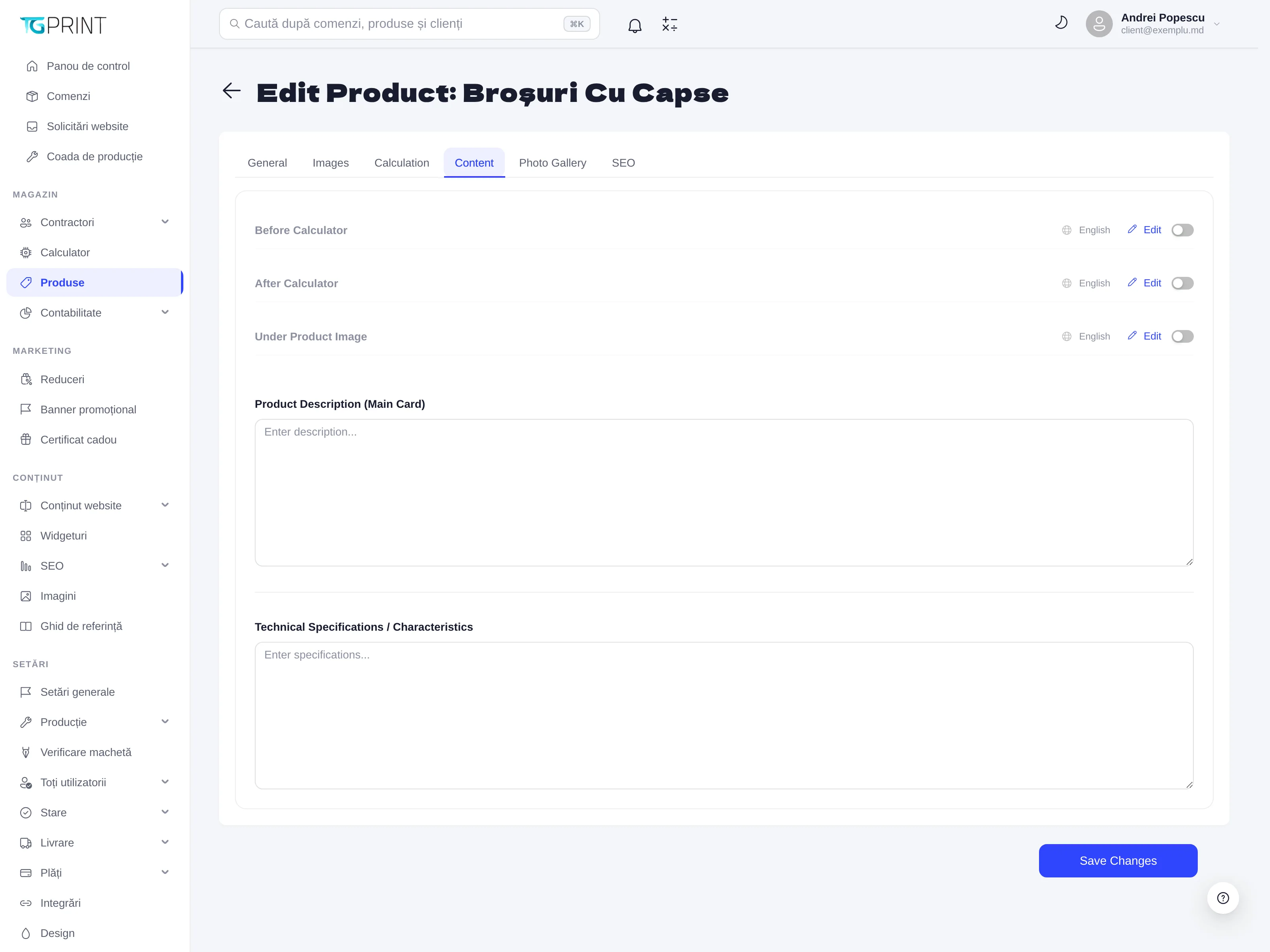
The long texts of the product page, each with Edit per language (English, Romanian, Russian):
- Before Calculator and After Calculator — blocks displayed above and below the calculator respectively: selling points, timeframes, “what you get”.
- Under Product Image — a short text under the image gallery.
- Product Description (Main Card) — the main description, in the card below the calculator.
- Technical Specifications / Characteristics — the technical characteristics (material, weight, dimensions), as a list.
A language left empty falls back to the base language of the site. See also General Settings for languages.
Photo Gallery
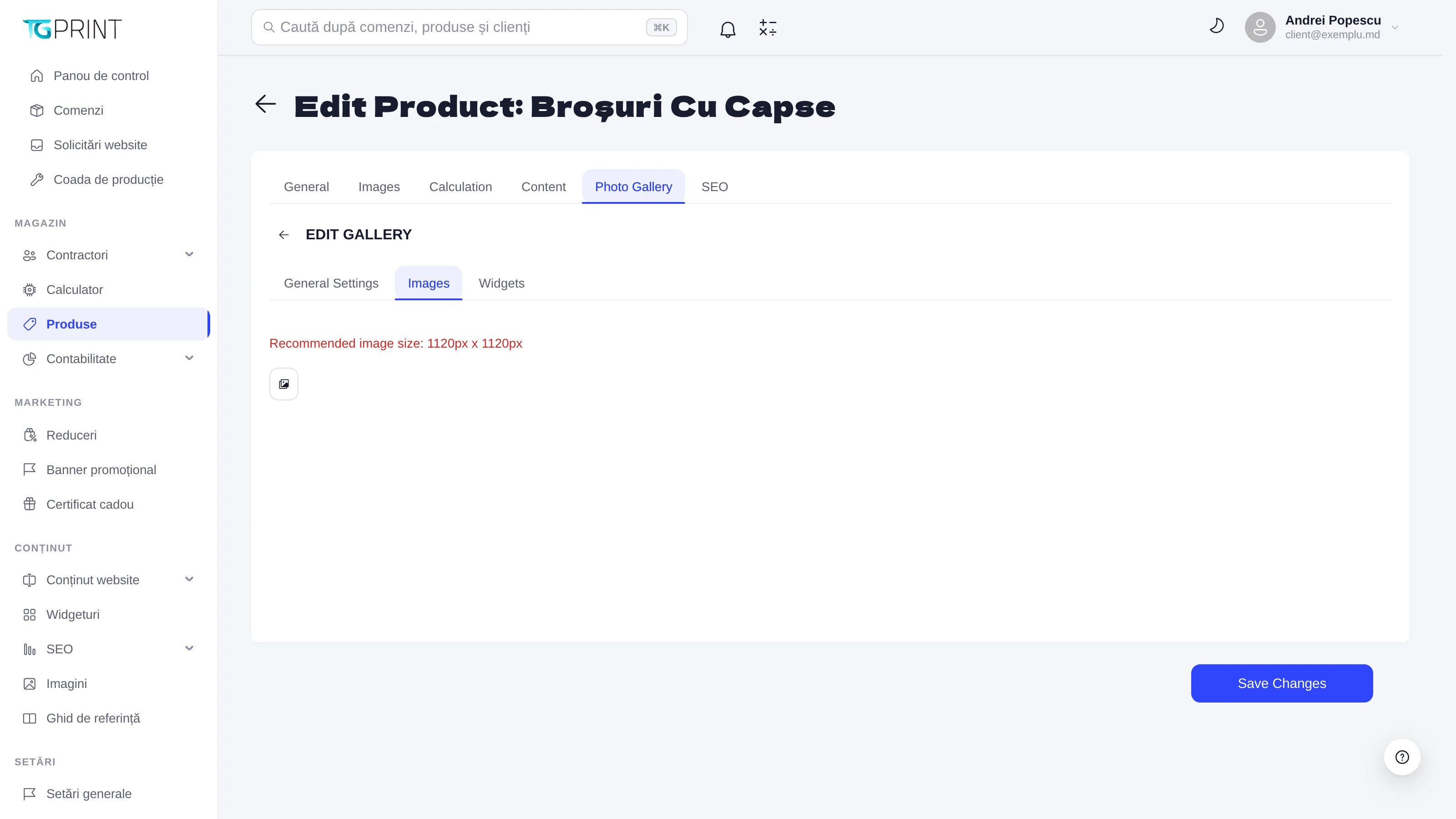
Photo Gallery is the gallery on the product page (the large images, with zoom), with three sections: General Settings (the display mode), Images (the gallery images — recommended size 1120×1120 px, square) and Widgets (additional blocks displayed next to the gallery).
SEO
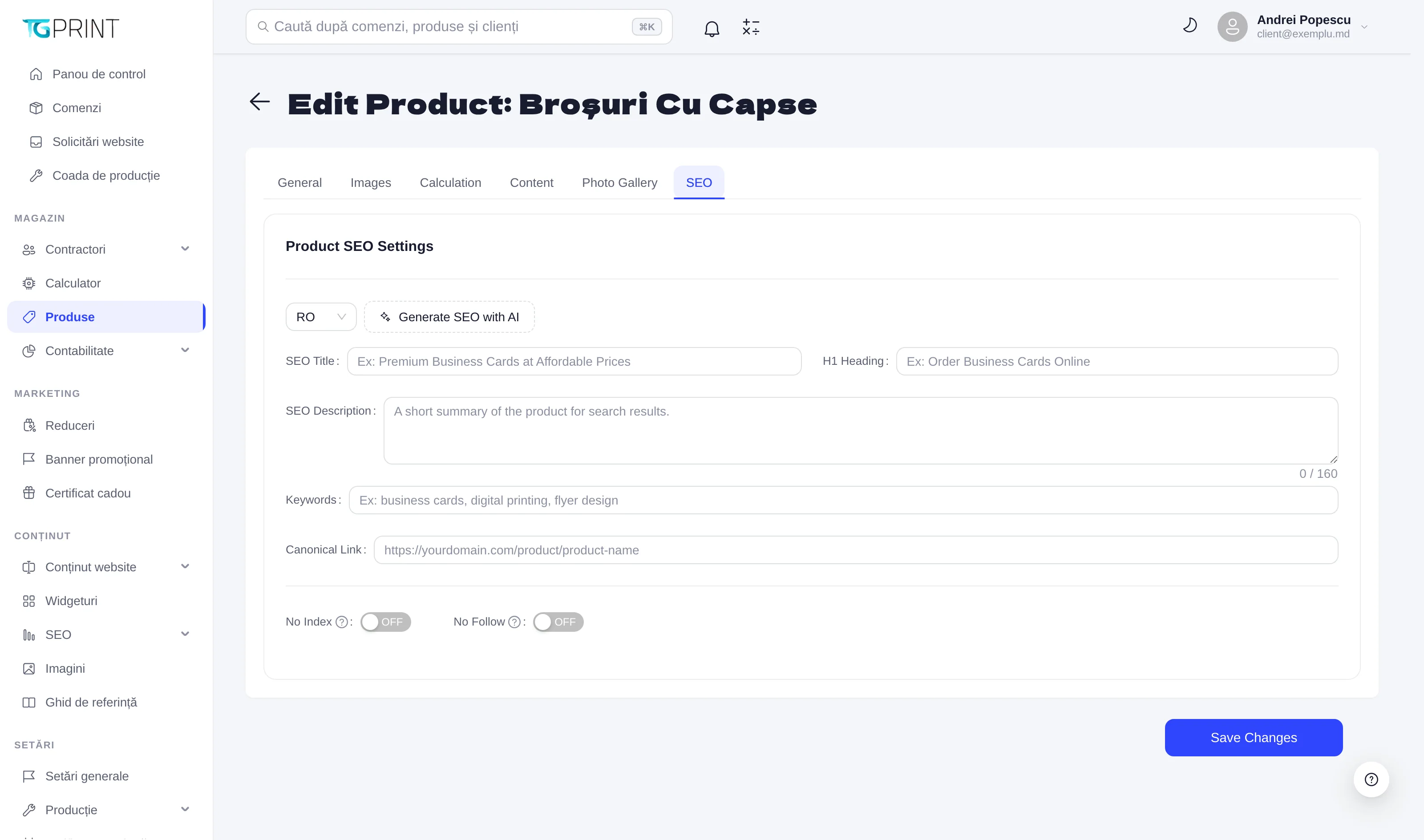
Per language (the RO / RU / EN switcher):
- SEO Title — the page title for search engines (the label of the browser tab); H1 Heading — the title visible on the page, if you want it to differ from Name.
- SEO Description — the description shown in search results (up to 160 characters); Keywords — the keywords.
- Canonical Link — the canonical address, if the same product is reachable at several addresses.
- No Index / No Follow — ON takes the page out of indexing, and respectively asks search engines not to follow the links on it. Leave OFF for the products you want customers to find.
- Generate SEO with AI — suggests the title, the description and the keywords based on the content of the product; check and correct them before Save Changes.
The site-wide settings (automatic canonical, robots, sitemap) are in Content → SEO — see SEO.
Note. A product appears on the storefront only if it is active, belongs to at least one active category and has a configured calculator. A product without a calculator still opens, but shows Calculator not configured for this product and cannot be ordered online.