Website requests
The requests coming in from the website forms: statuses, details, accepting them and turning them into an order.
Updated:
Not everything that comes from the website is an order. When a visitor fills in the contact form, clicks Buy in one click on a product or sends a quote request from a widget, a request appears in the panel — an enquiry with contact details, a message and, sometimes, the configuration chosen in the calculator. You find them in Website Requests, the third entry in the menu; the number of unprocessed ones also appears on the Dashboard, in the Pending requests card.
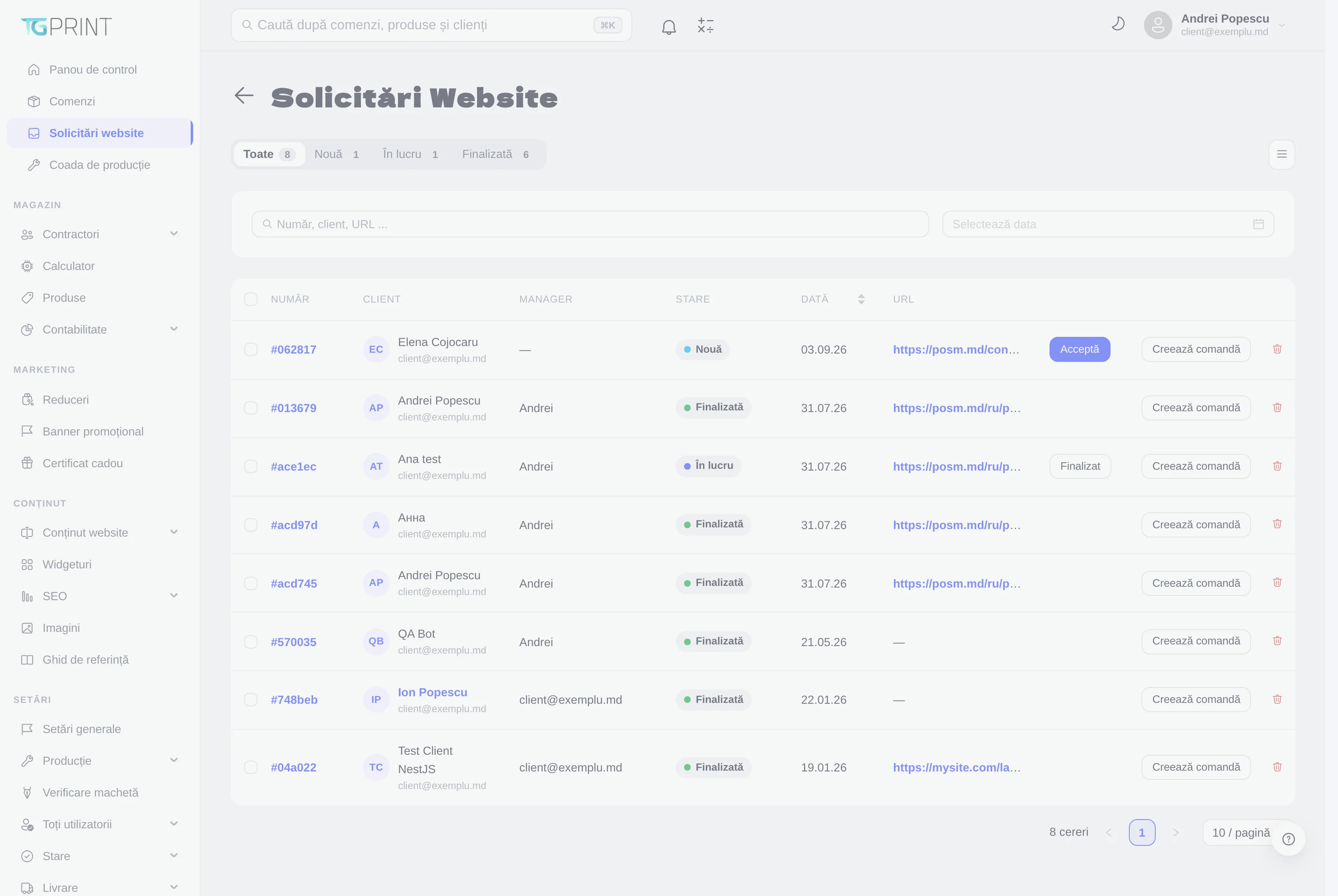
The list
The buttons at the top filter the list by status, each with its counter: All, New (nobody has answered yet), In review (picked up by a manager), Completed (resolved or turned into an order). The statuses and the tabs can be redefined in Settings → Status → Website Requests — see Statuses and rules. Below them, the Number, client, URL … field searches the list, and Select date narrows it down to an interval.
The table columns:
- Number — the identifier of the request; click it to open the details.
- Client — the name and the email, with the initials on the left.
- Manager — who picked the request up.
- Status, Date and URL — the page on the website it was sent from (the contact form, a product page).
- The actions on the right: Accept (only on new requests), Create Order and deletion.
The details of a request
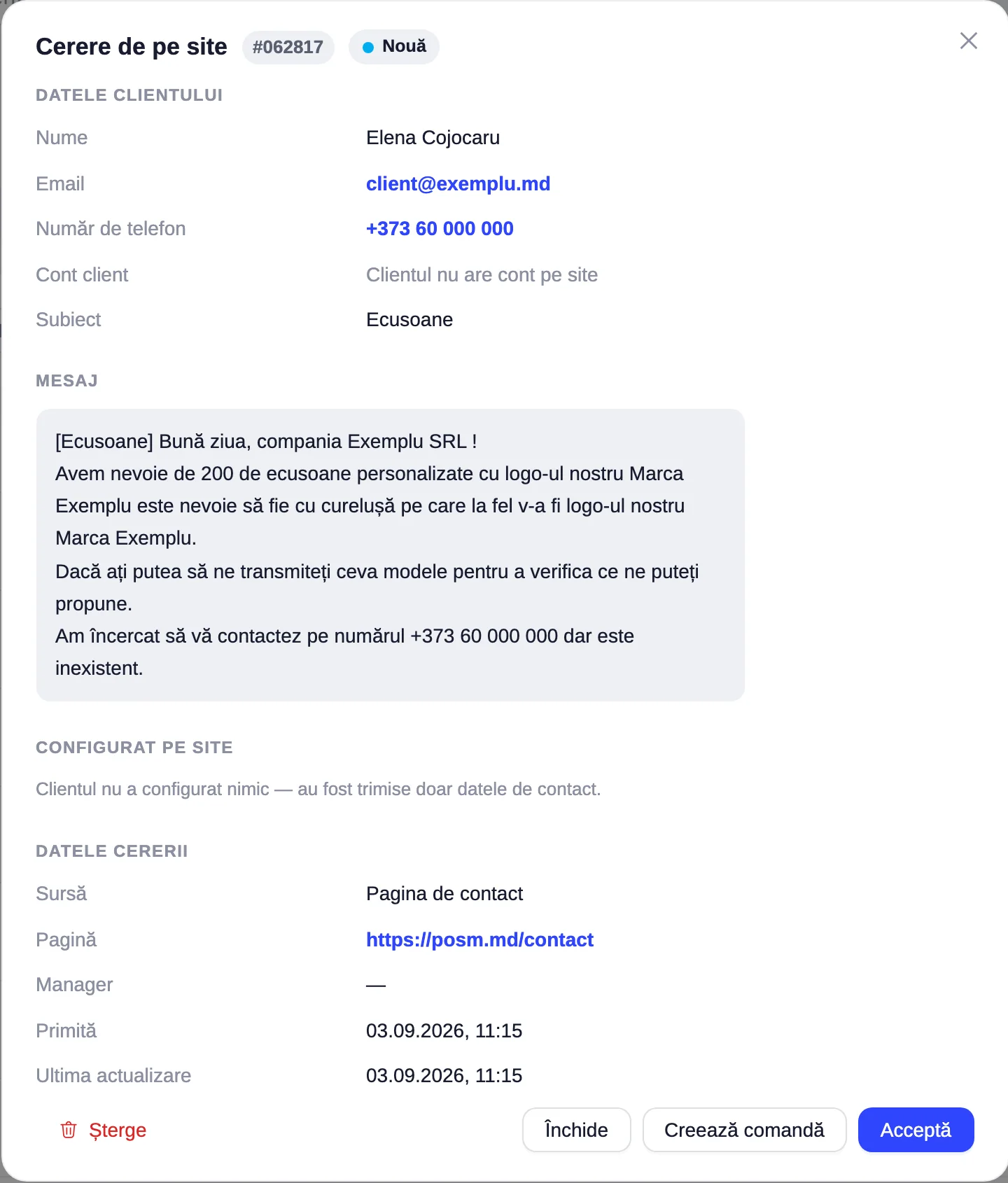
Click the request number to open the Website request window:
- Client details — name, email and phone (both are links: click to write or to call), Client account (if the email matches an existing account, or This client has no account on the site) and Subject.
- Message — the text written by the customer, exactly as he sent it.
- Configured on the website — for requests coming from a product page, the product and the parameters chosen in the calculator (format, quantity, options, the price displayed), so you do not have to ask again. For a contact form it says The customer configured nothing — only the contact details were sent.
- Request data — Source (Contact page, a product page…), Page (the exact address), Manager, Received and Last update.
- The buttons at the bottom: Delete, Close, Create Order and Accept.
How to handle a request
- Open the request and read the message. If it calls for an answer (a question, a quote), contact the customer through the email/phone links.
- Click Accept: the request moves to In review and stays assigned to you as its manager, so your colleagues know it has been picked up. The request stays in the list until you close it.
- If the request leads to an order, click Create Order: the calculator in the admin panel opens with the customer (and, when there is one, the product with its configuration) prefilled from the request; you complete what is missing and place the order — see The calculator in the admin panel. The order created this way carries the mention Created from website request #…, and the request gets the status mapped to "order created" (usually Completed).
- Requests resolved without an order are marked Done from the main list (the button appears on requests that are in review).
Note. Deleting a request is permanent and does not delete the order created from it. Keep the completed requests: they are the history of your conversations with the customer and they appear in his record, in the Website Requests tab.