Production queue
The daily production screen: what has to be done, in what order and how the stages are marked.
Updated:
The Production queue (the fourth entry in the menu) is the workshop's screen: it shows only the products from orders that have reached production, each with its materials, its operations and its deadline, so the operator knows what comes next without opening the orders one by one. It is a working screen, not a configuration one: here you tick off the stages that are done, everything else is managed from the order page.
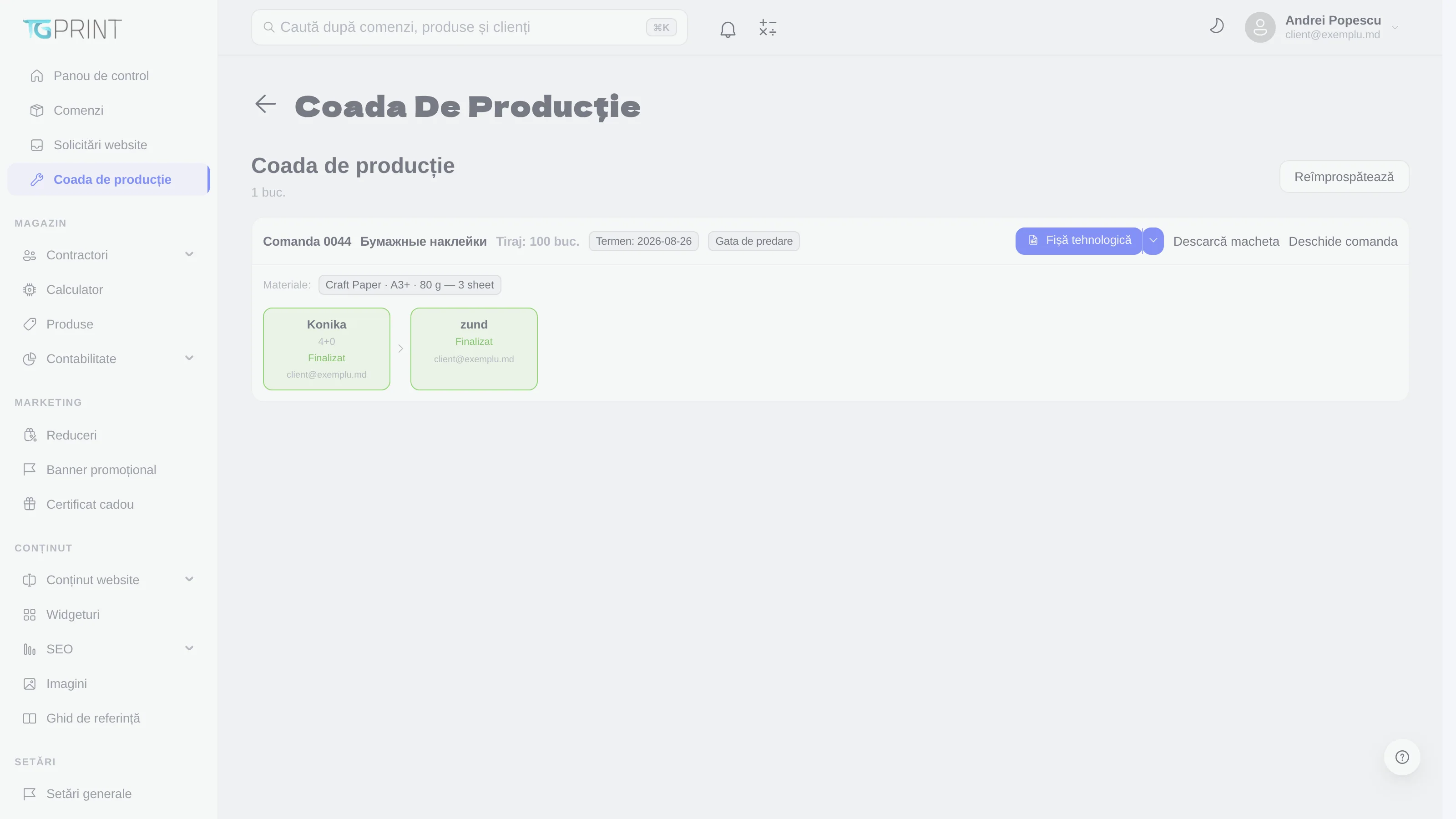
What appears in the queue
A product enters the queue when its order reaches a status of the Production type (statuses are marked as such in Settings → Status → Orders, the Type column) and leaves it when the order moves on. The screen title shows how many items there are to work on (1 pcs), and Refresh re-reads the list — both handy on a screen left open all day.
Each item is a card with:
- the order number and the product name, followed by Run and Ready by (the date it has to be finished by, computed from the production timeframe the customer chose);
- the order's current status (for example Ready for handover);
- three actions: Tech card, Download artwork, Open the order;
- the list of materials (the paper, the sheet format, the weight and the calculated number of sheets) and the operations to be carried out, in the order of the technological flow, with the machine for each one.
How to work on an item
- Click Tech card to open the item's job ticket, ready to print: the product, the parameters chosen by the customer, the materials with their quantities and the list of operations. It is the same ticket the order page generates.
- Click Download artwork to get the file uploaded by the customer (or prepared by the designer). If the order has no approved artwork yet, the button is missing — the item should not be in production.
- Carry out the operations in order. Every operation has its own status; when you finish one, mark it as Done. Next to the operation's status you see who marked it.
- When all the operations of an item are finished, the order can move to the next status (for example Ready for delivery). The move is made by the manager from the order page or, if it is configured, by an automatic rule — see Statuses and rules.
Note. The queue only shows the items, not the customer's data or the payment. For anything else — comments, rejected artwork, changing the deadline — use Open the order.
Who sees the queue
The screen is meant for the Operator role, which usually has no access to the rest of the store; managers and administrators see it as well. The permission is granted from Settings → All Users → Roles And Accesses — see Users, roles and managers.